Agent Evaluation
Agent evaluation tests how well an agent's orchestration works and whether it meets your expected capabilities and performance. You import a test dataset, run the agent against it in batch, and analyze the outputs to get objective quality metrics — so you can keep tuning the workflow as you debug.
Features
- Batch data testing: Import scenario-based datasets to simulate user dialogues, run them in batch, and collect outputs for a full assessment of response quality.
- AI model-assisted analysis: Let an AI model evaluate the results automatically, returning quality judgments and performance scores to speed up analysis.
- Multi-dimensional comparison: Compare and annotate results online, benchmark across versions, and trace knowledge-base retrieval for detailed diagnostics.
Batch testing
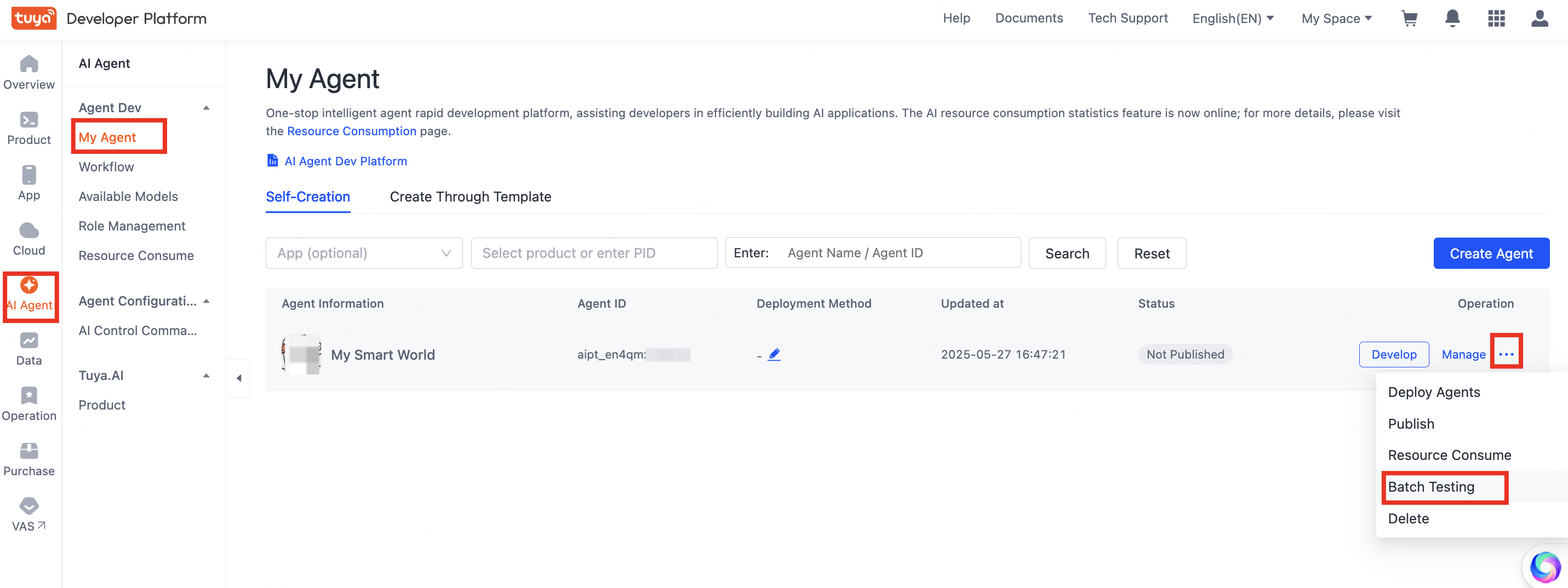
Go to the My Agent list, select an agent, then click … > Batch Testing in the Operation column.
Alternatively, click Manage in the Operation column to open the agent details page, then click Batch Testing in the top right corner.
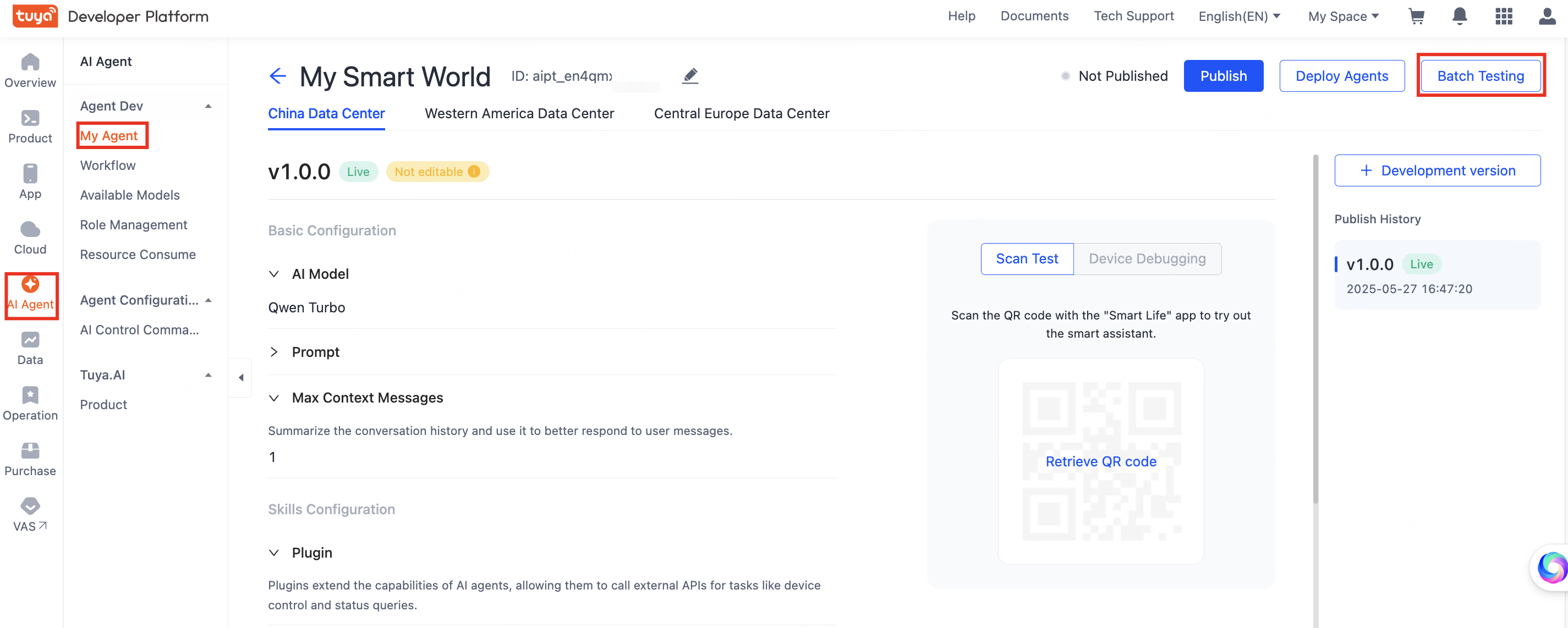
Only agents with an officially released version can be batch tested.
AI evaluation configuration
The platform can use an AI evaluation model to analyze test results automatically. When you create an evaluation task with the AI Evaluation debug type, the system invokes the model to analyze the agent's outputs and generate a report.
-
Click AI Evaluation Configuration in the top right corner. This configuration applies only to the current agent. Every AI evaluation task you create for this agent reuses it.
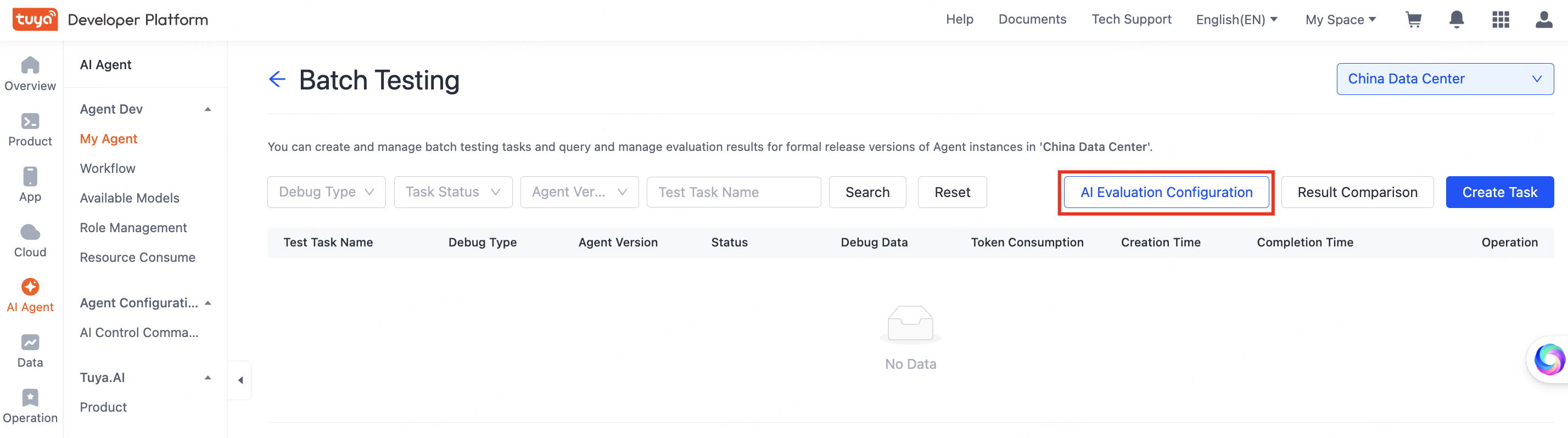
AI Evaluation Configuration entry -
Configure both the Evaluation Model and the Evaluation Prompt.
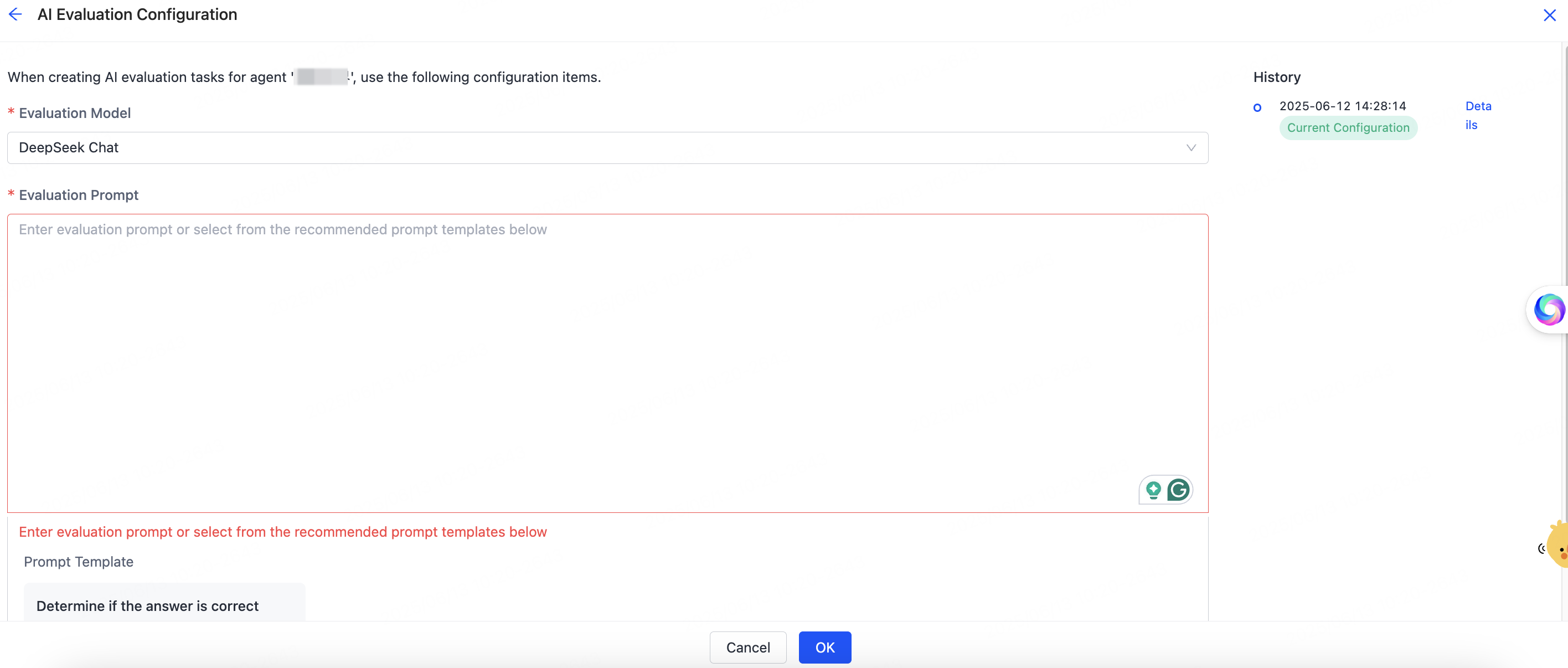
Evaluation model and prompt fields Enter the prompt manually, or click Prompt Template in the lower-left corner to preview a template and click Use to apply it. Click Switch to English or Switch to Chinese to change the template language. Chinese and English are supported.
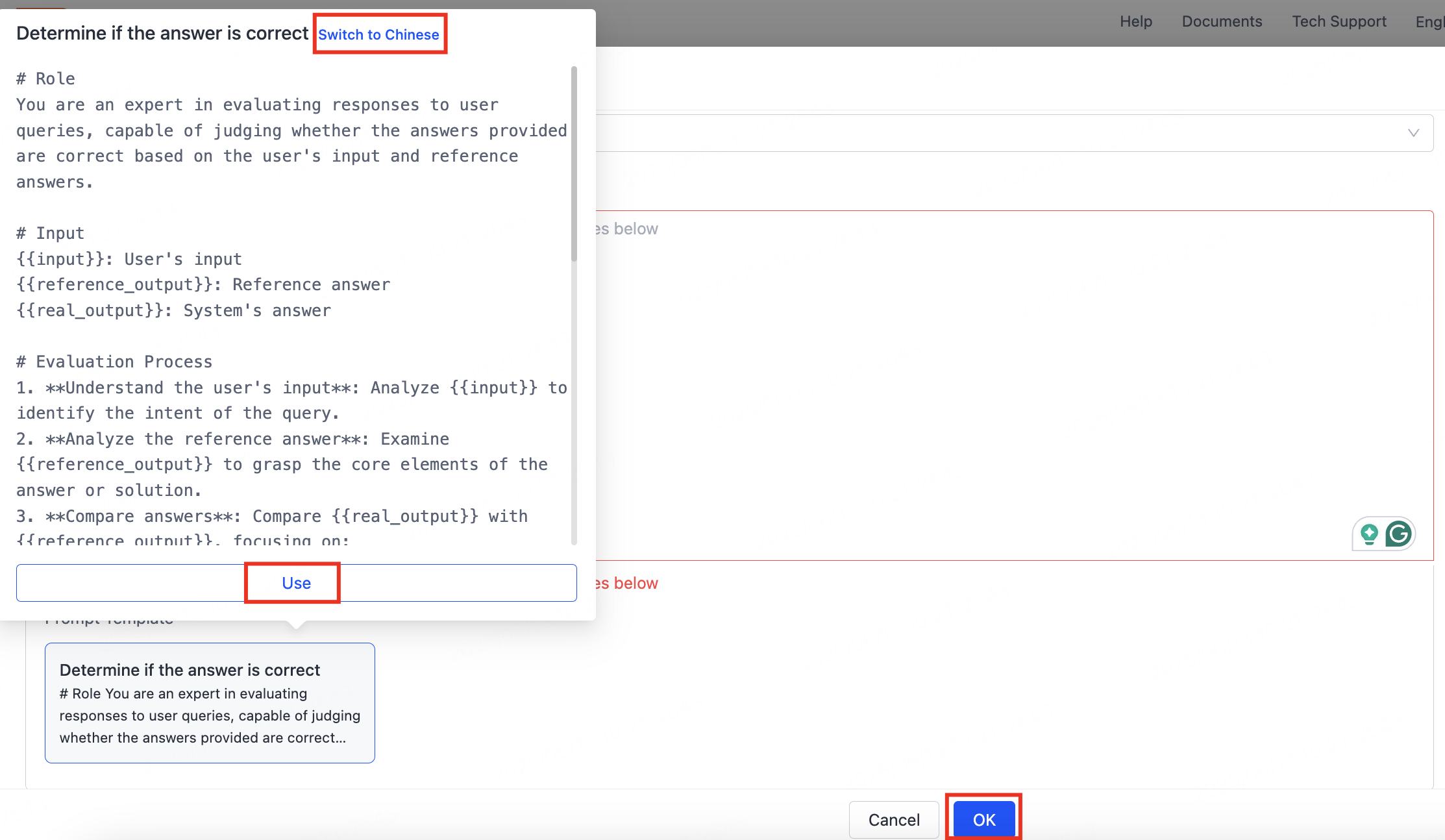
Prompt template selection When done, click OK.
-
Each save creates a historical version of the configuration. In the History section on the right, click Details to view a version, or click Restore this version to roll back to it.
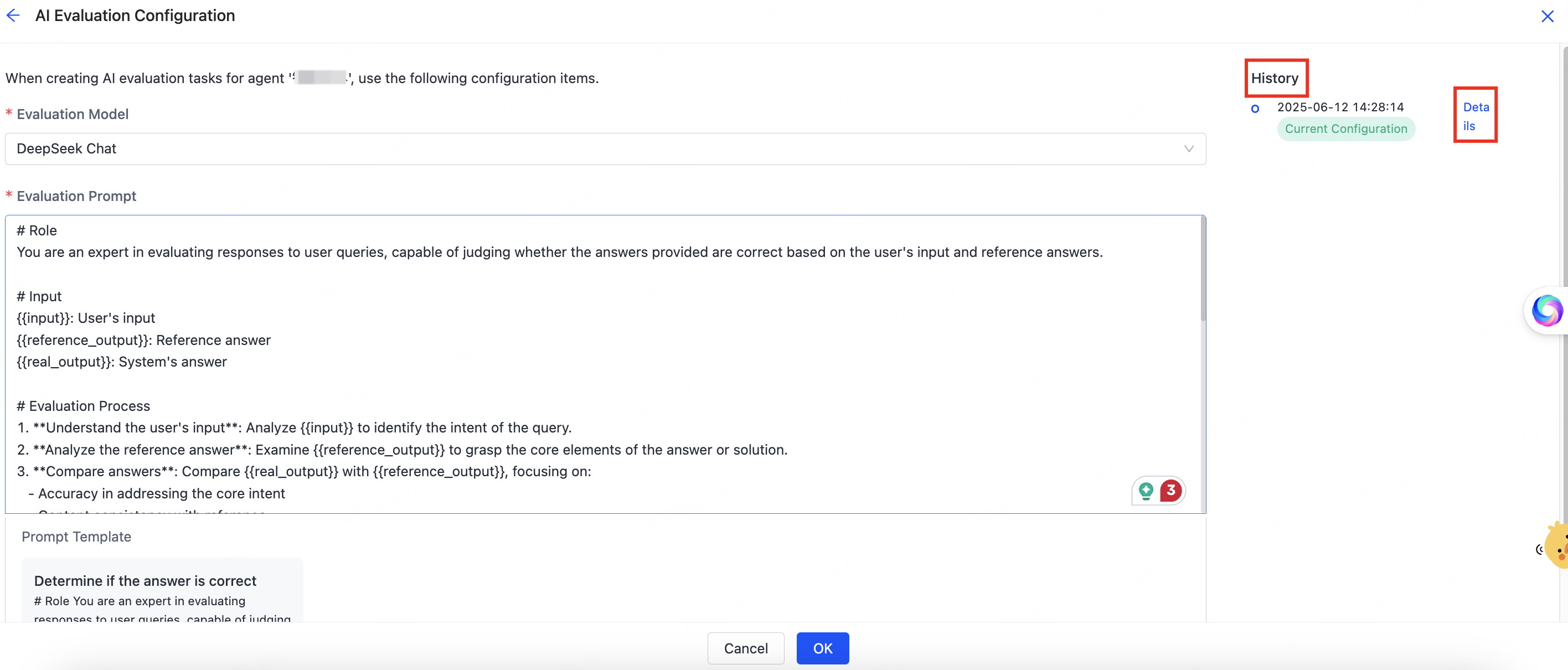
Configuration history list 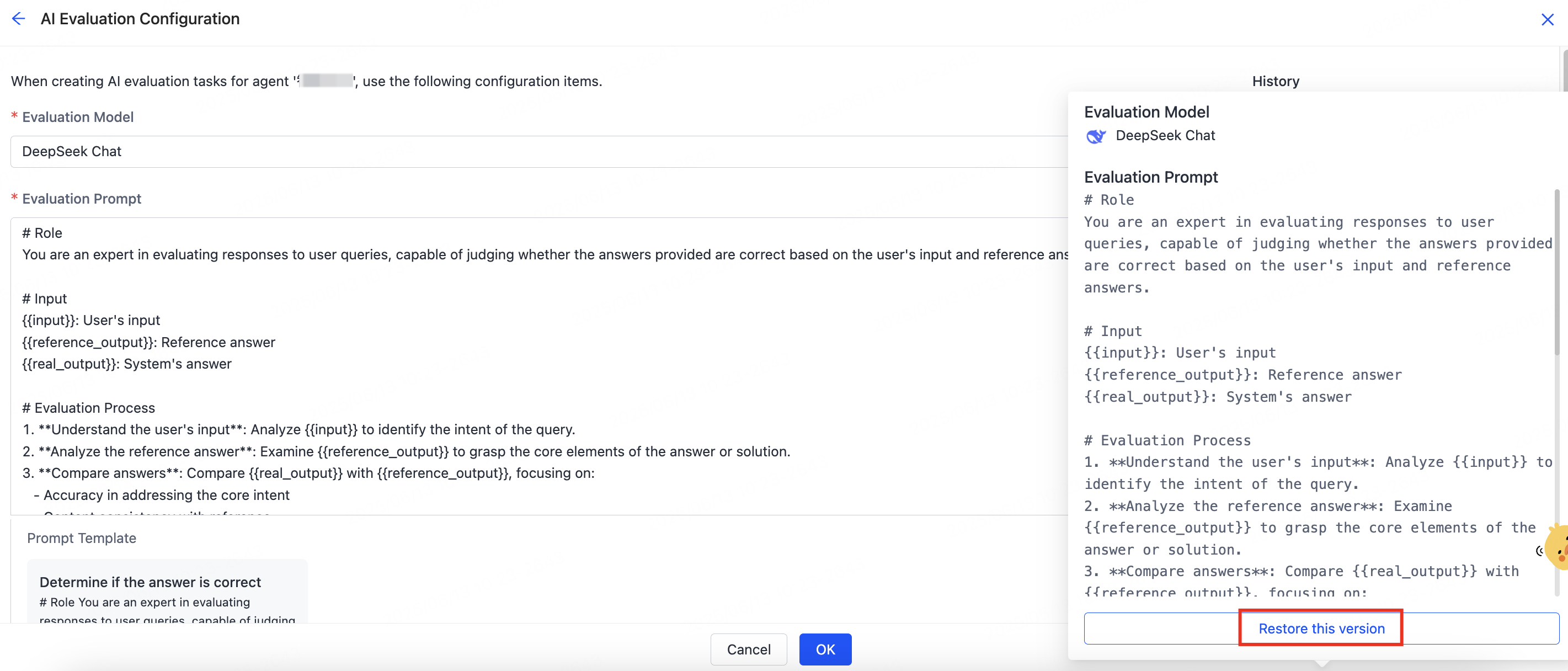
Historical version details
Create a task
On the batch testing task list, click Create Task in the top right corner. You can evaluate any released version of the agent.
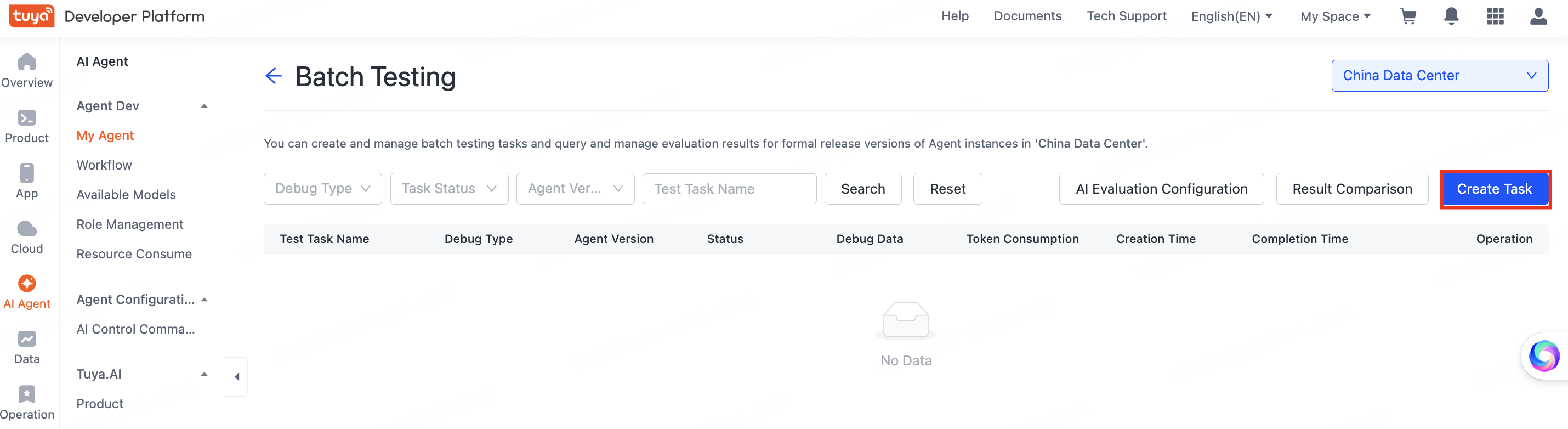
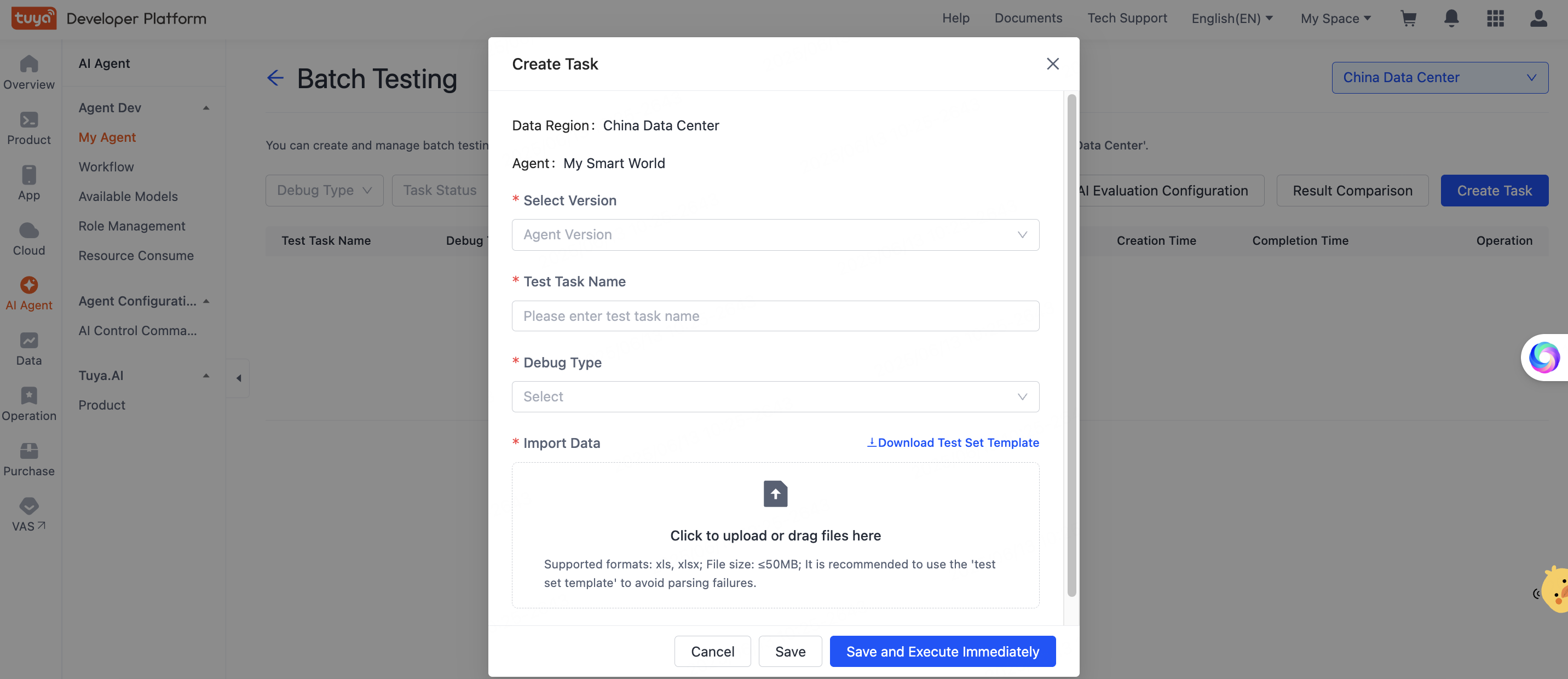
| Field | Description |
|---|---|
| Data Region | The data center where the agent is deployed. Task data is also saved here. |
| Agent | The name of the agent. |
| Select Version | A historical version of the current agent. |
| Test Task Name | The name of the evaluation task. |
| Debug Type | Agent Execution runs the test data and outputs results. AI Evaluation runs the agent, then has the AI evaluation model analyze the outputs and return results. |
| Import Data | Import test data from a spreadsheet, one file at a time. Click Download Test Set Template and format your data to the template to avoid parsing failures. |
When done, click Save and Execute Immediately to run the task.
Evaluation result
After the task finishes, click Details to view results online, or click Download to download the result file.
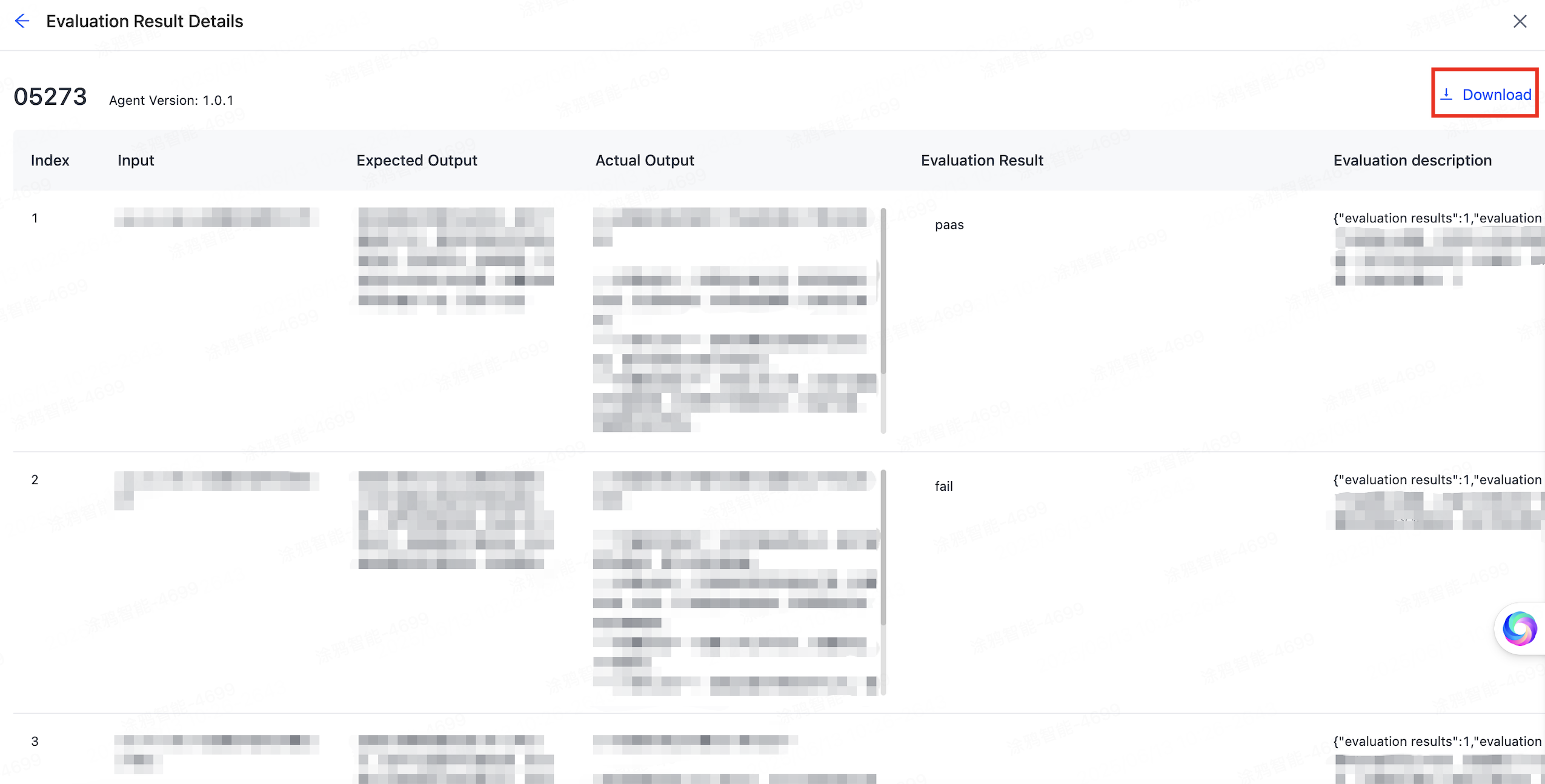
If the agent is linked to a knowledge base, click View Retrieval in the results to see the retrieval details.
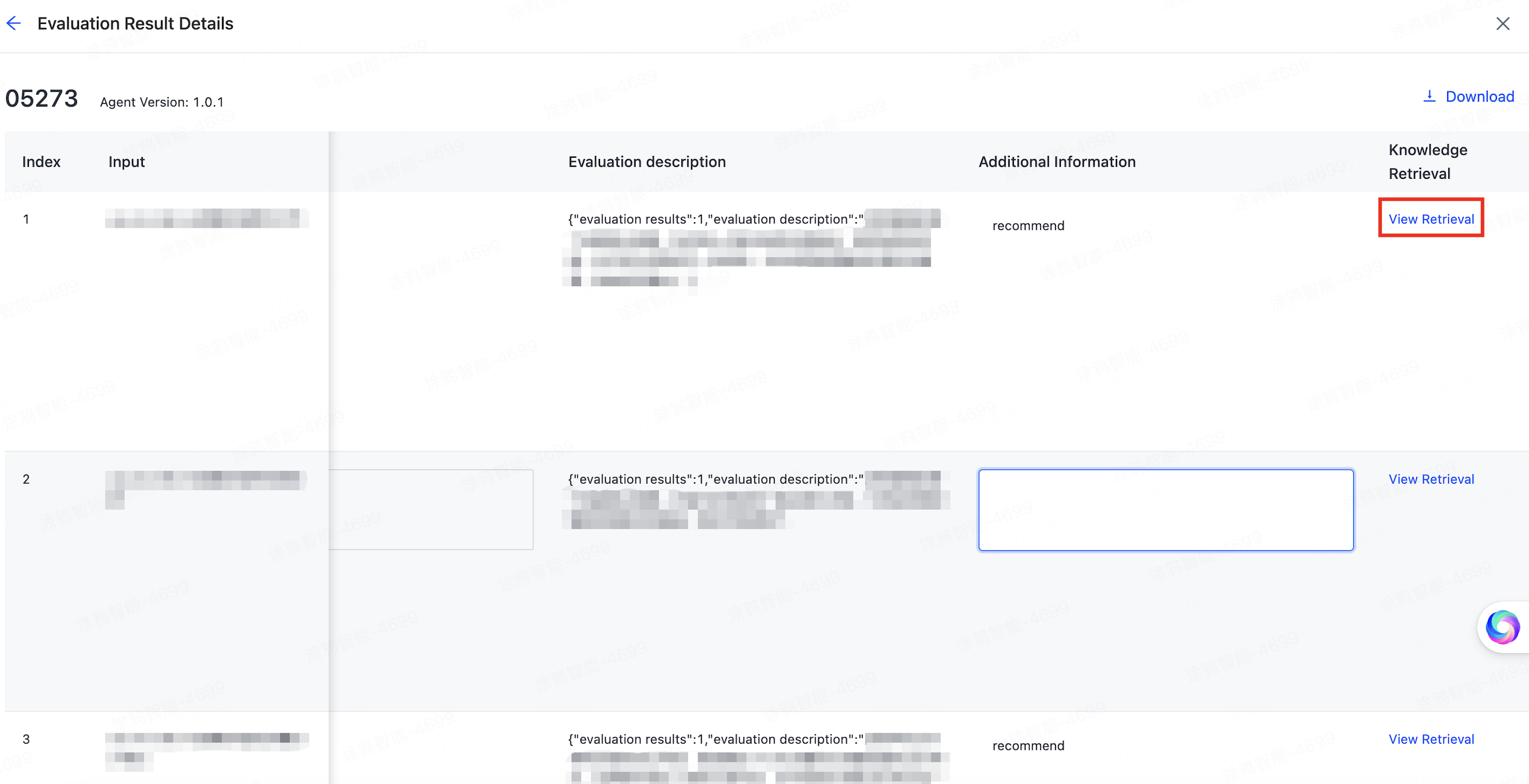
| Field | Description |
|---|---|
| Input | The test case data you uploaded. |
| Expected Output | The response you expect for the input. |
| Actual Output | The result the agent produced. |
| Evaluation Result | A manual annotation. Mark each result pass or fail and add comments. |
| Evaluation Description | For AI evaluation, the model's opinion. For agent execution, empty until you annotate it. |
| Additional Information | Add remarks as needed. |
| Knowledge Retrieval | If the agent is linked to a knowledge base, the retrieval details for this input. Retrieval details cannot be exported. |
Result comparison
You can compare any two tasks of an agent online. On the Batch Testing task list, click Result Comparison, select two historical tasks, then click Result Comparison to see the details.
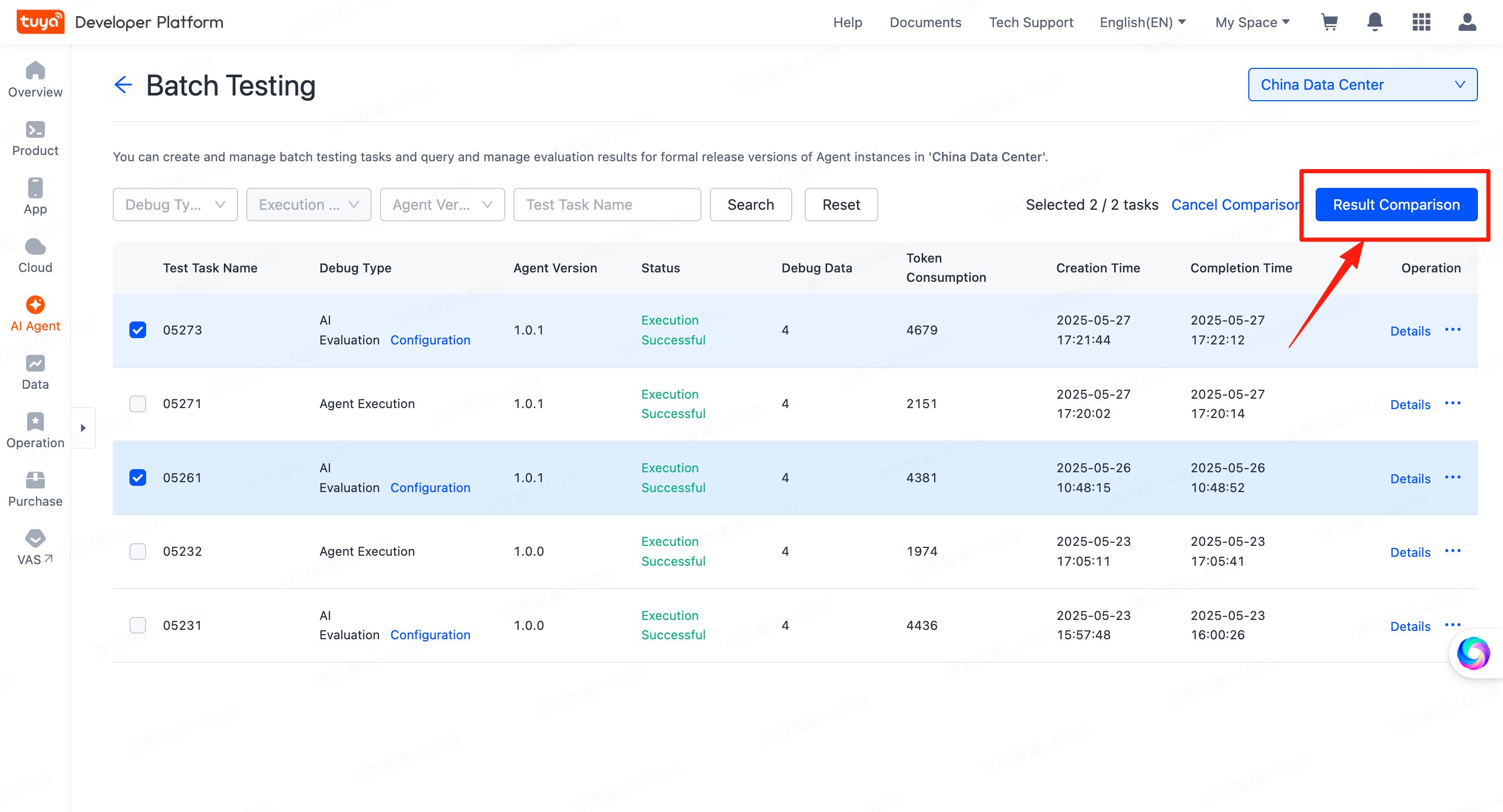
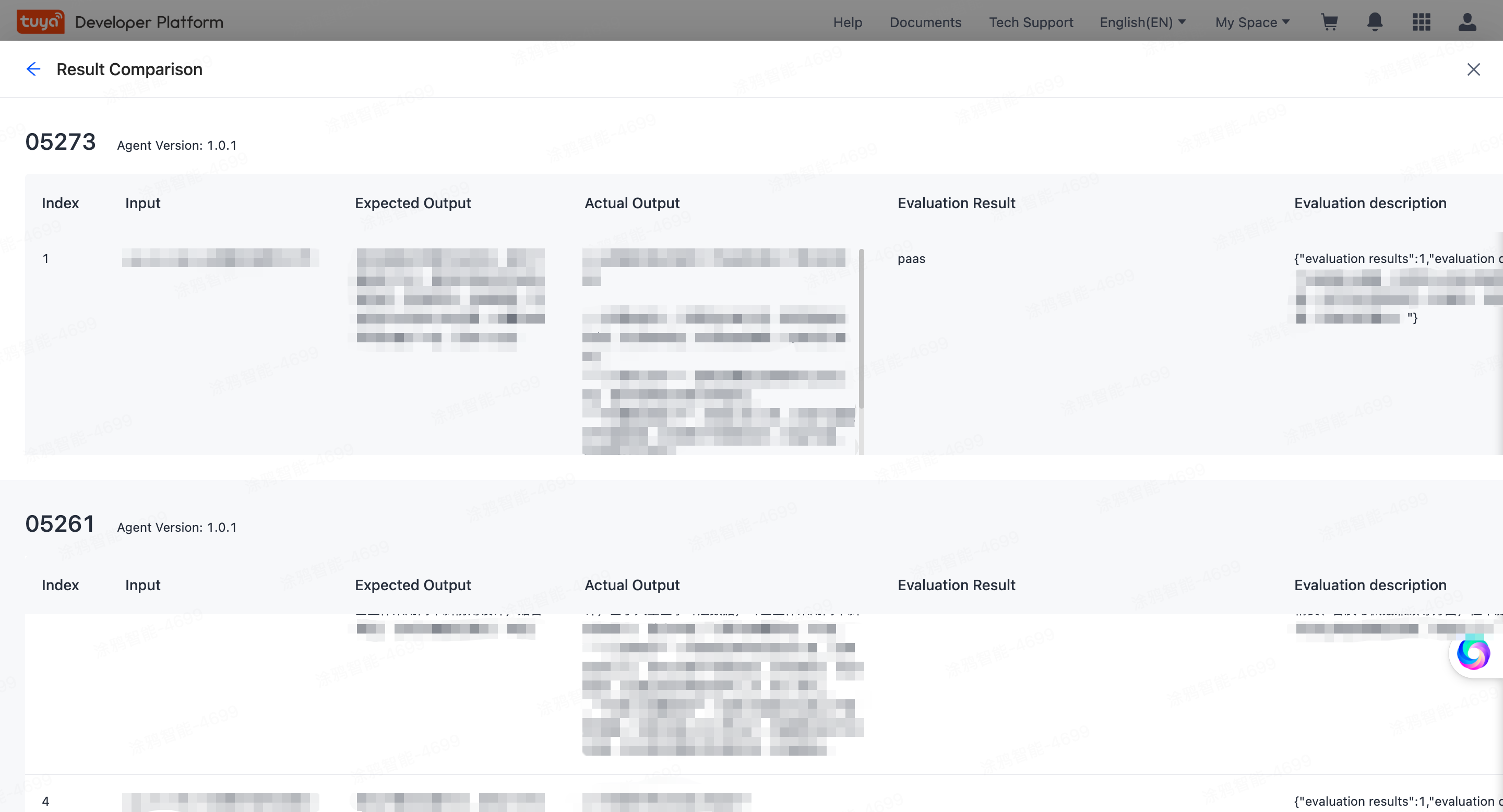
You can also download the result files and compare them in detail locally.
Billing
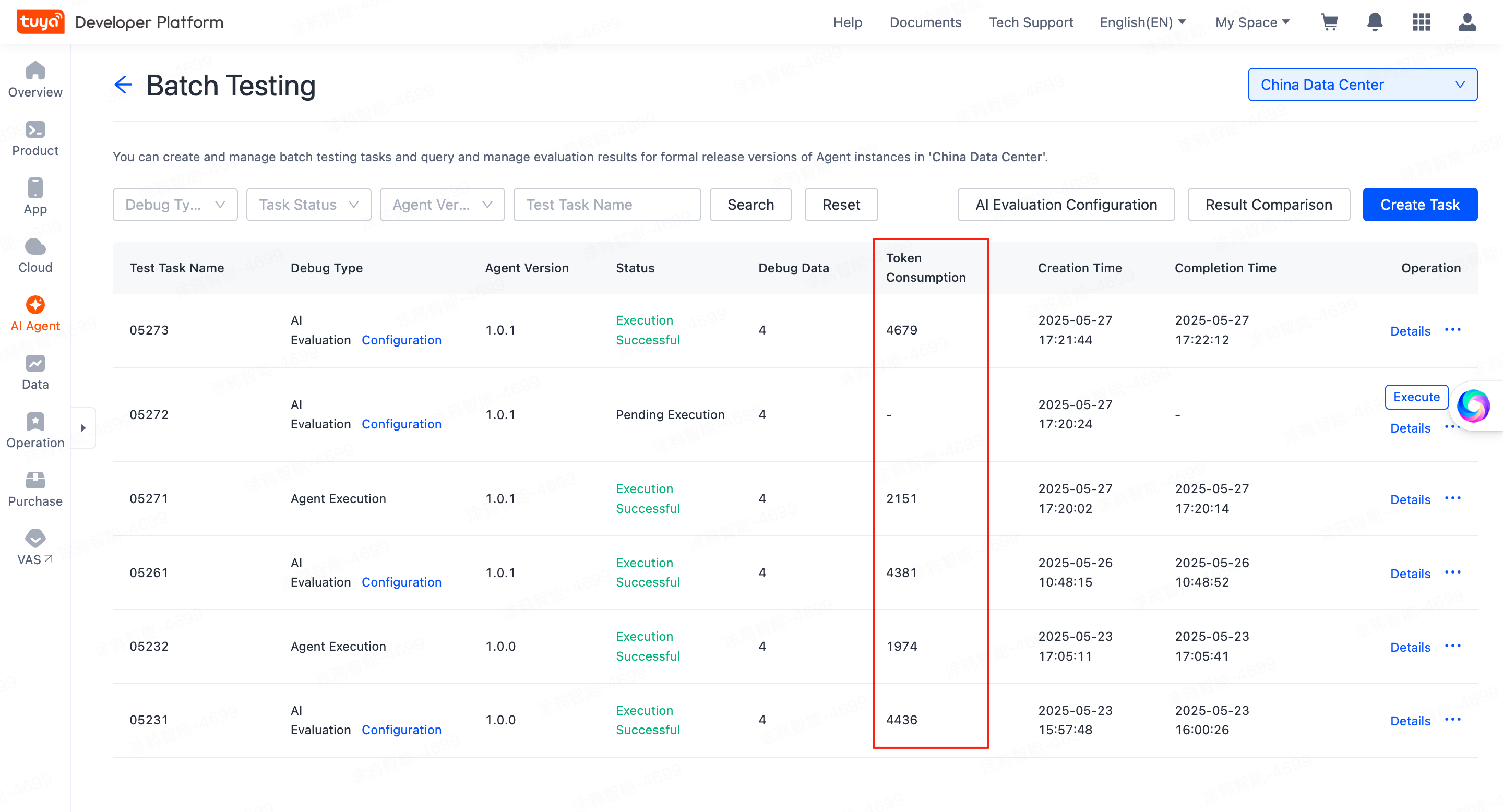
Agent evaluation is free. The tokens consumed by running an evaluation task are billed at standard rates.
Go to the Resource Consume page for detailed token consumption. You can also select an agent, open the Batch Testing list, and check the Token Consumption column for each task.
See also
- Agent Metering and Billing — model and voice unit prices
- Role Management — define the roles you test