AI Agent Dev Platform
The AI Agent Dev Platform integrates multiple language models and gives you one place to build, configure, and run AI agents. You deploy and debug agent applications through configuration on the platform, without writing the orchestration yourself.
Create an agent
-
Log in to the Tuya Developer Platform.
-
On the homepage, click Enter AI Agent Development under Developer Console > AI Agent, or choose AI Agent > Agent Dev > My Agent in the left navigation menu. Either path opens the AI Agent Dev Platform.
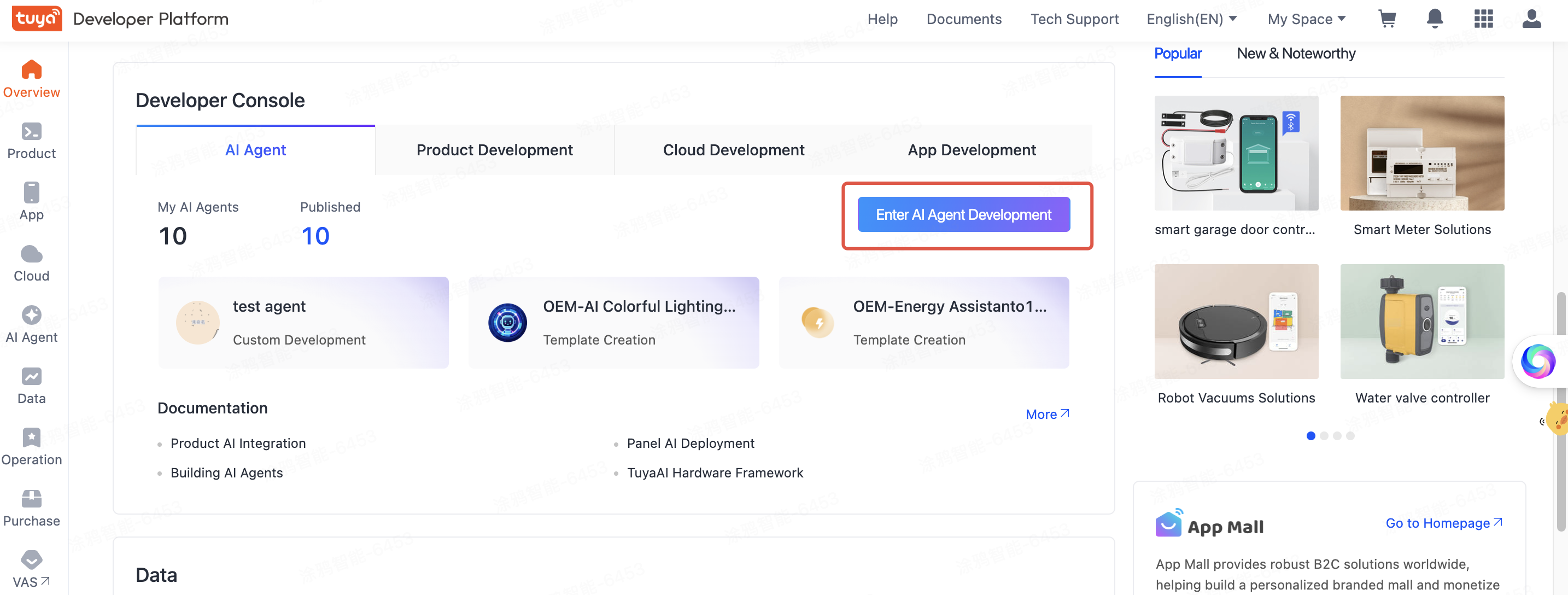
AI Agent Dev Platform homepage entry 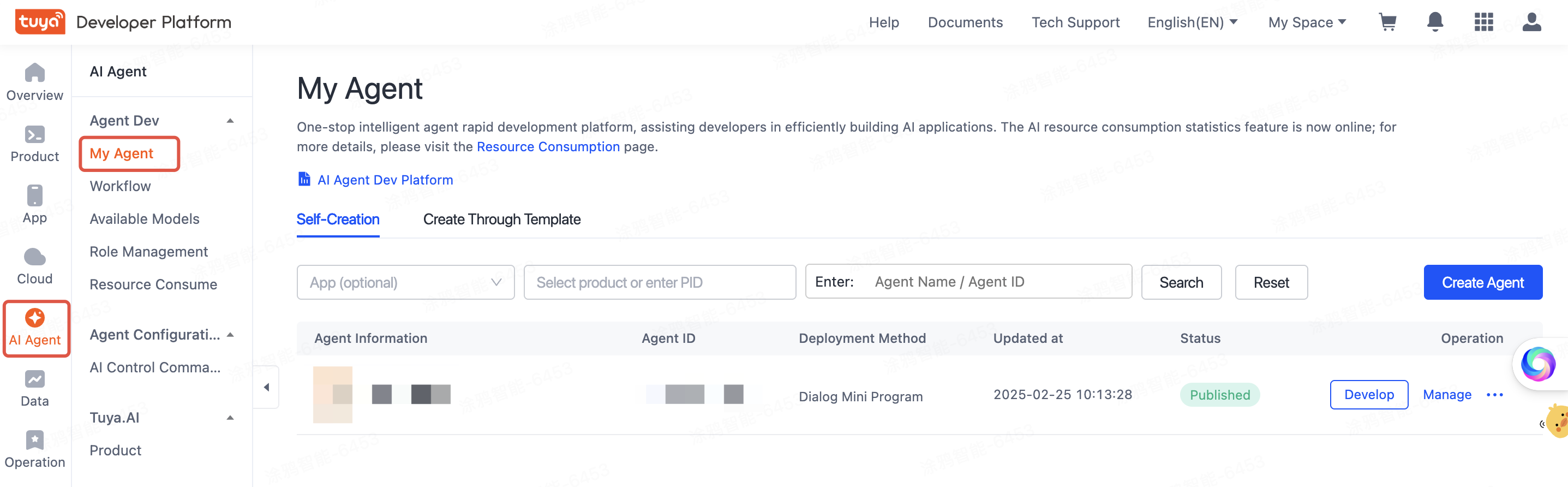
AI Agent Dev Platform My Agent list -
Click Create Agent in the upper-right corner. Complete the configuration in the Create My AI Project window as shown below, then click OK.
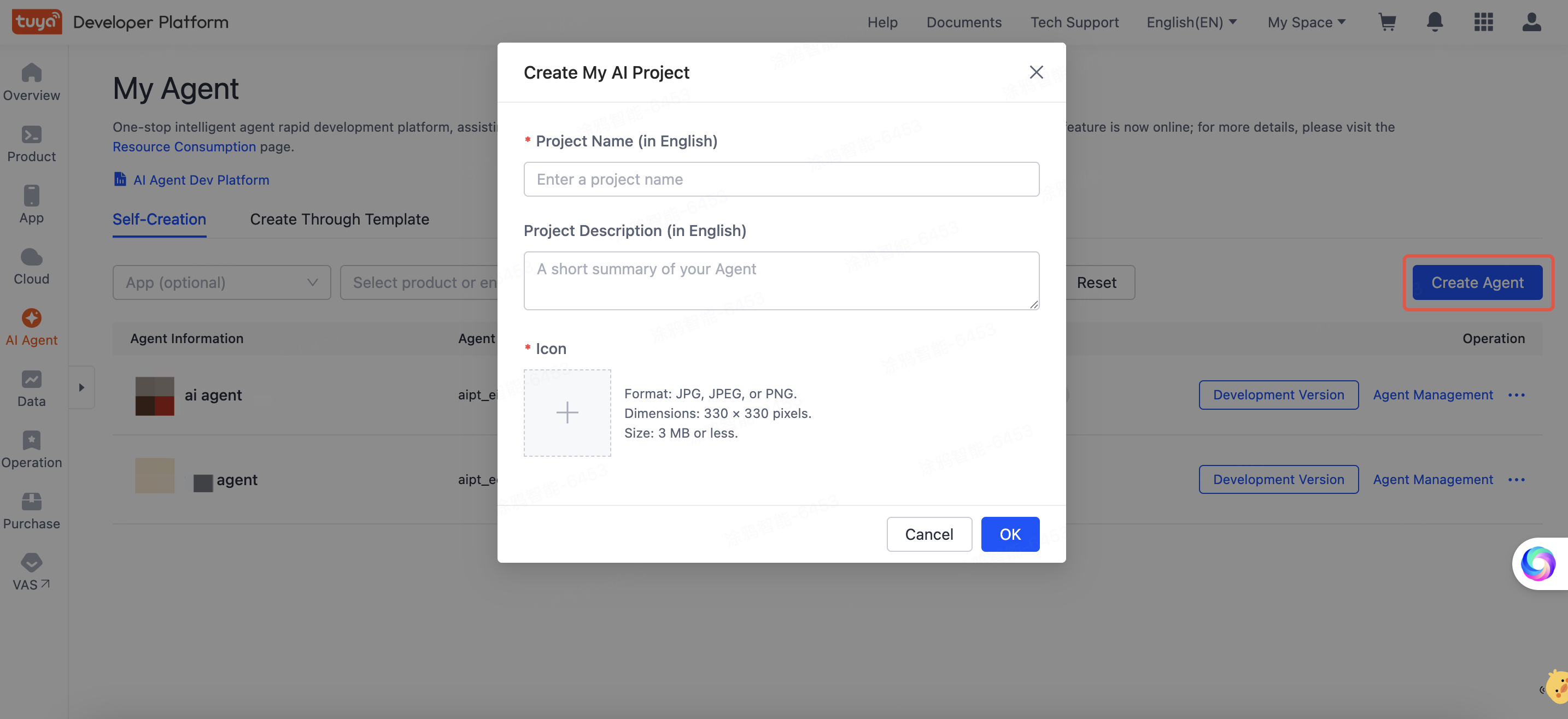
Create My AI Project window -
The agent's development page opens. Configure its model capabilities, prompts, and other settings as described in the sections below.
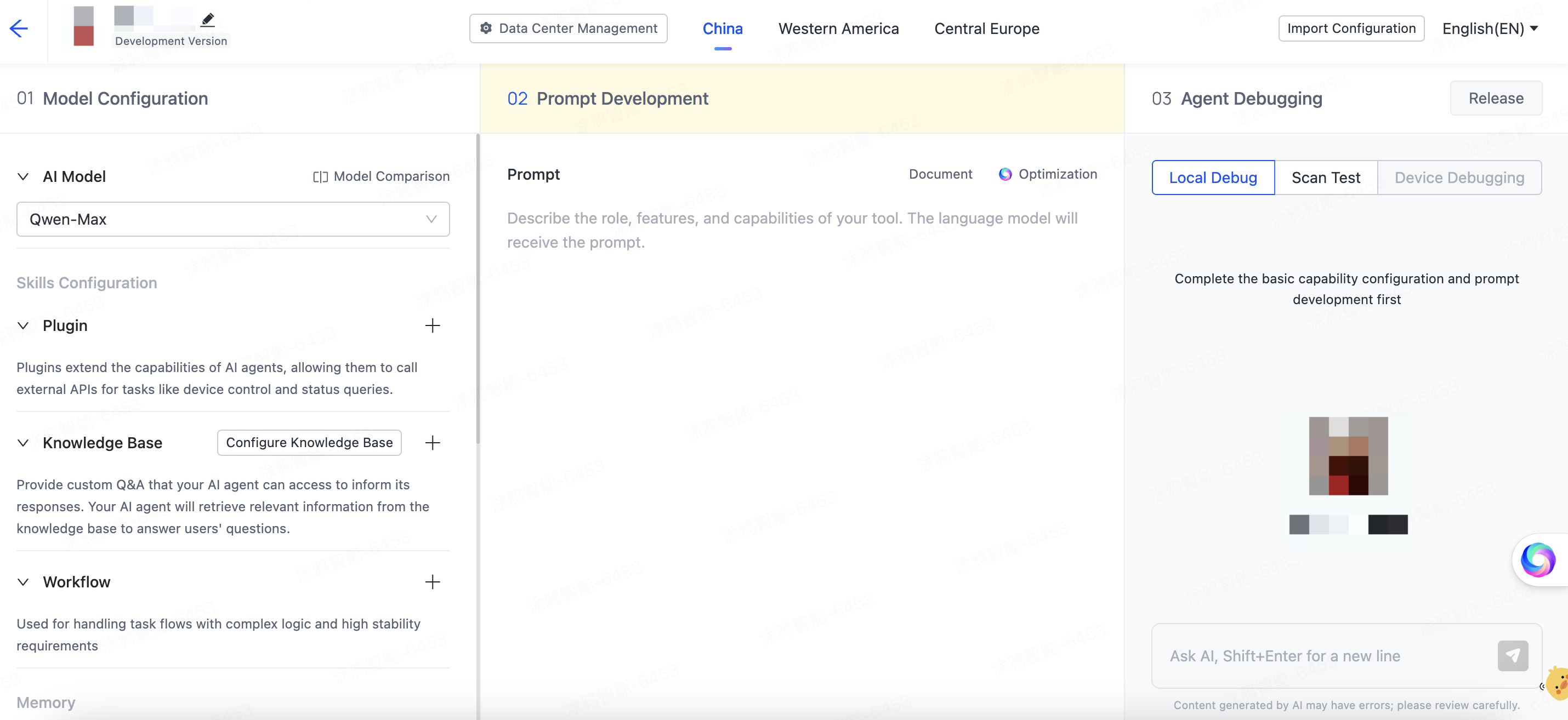
Agent development page
Configure model capabilities
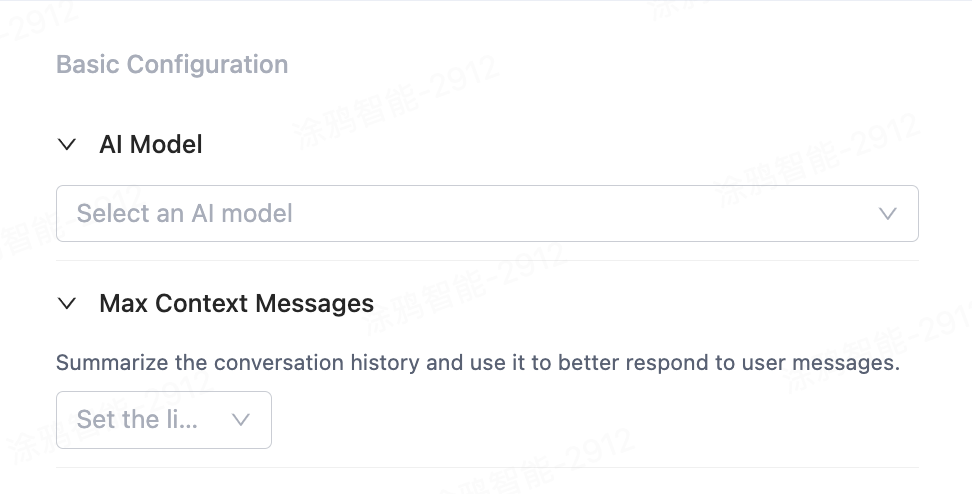
LLM model
Select the large language model the agent uses. The available models differ by data center for compliance reasons, and each model carries a different token cost.
Max context messages
Set how many previous turns the agent remembers and processes. More history keeps the conversation contextually consistent and improves responses, but it also raises the compute cost of each turn. Tune this value to your scenario.
Skills configuration
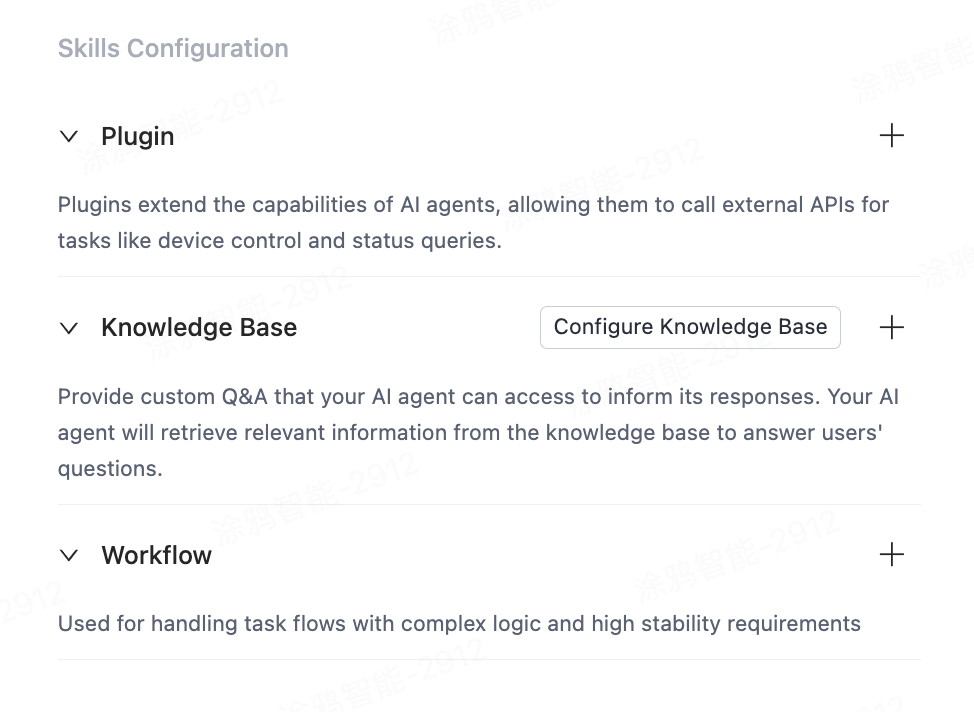
Plugin
Plugins are independent functions you add to the agent. Through a plugin, the agent can call tools or APIs — for example, device queries, device control, and scene control — which extends the agent to handle more varied and complex tasks.
Knowledge base
A knowledge base stores and manages information, data, and knowledge that the agent draws on to answer questions or complete tasks. It can hold text, documents, images, and videos.
The knowledge base uses retrieval-augmented generation (RAG) to improve answer quality. RAG works in two steps:
- Information retrieval — using a retrieval model or algorithm, the agent finds documents or snippets in the knowledge base that relate to the user query.
- Answer generation — from those documents, the user query, and the context, the agent generates a natural, coherent response.
Workflow
When a scenario needs the agent to follow specific logic to complete a task or reply, configure a workflow and have the agent run on it.
Develop the prompt
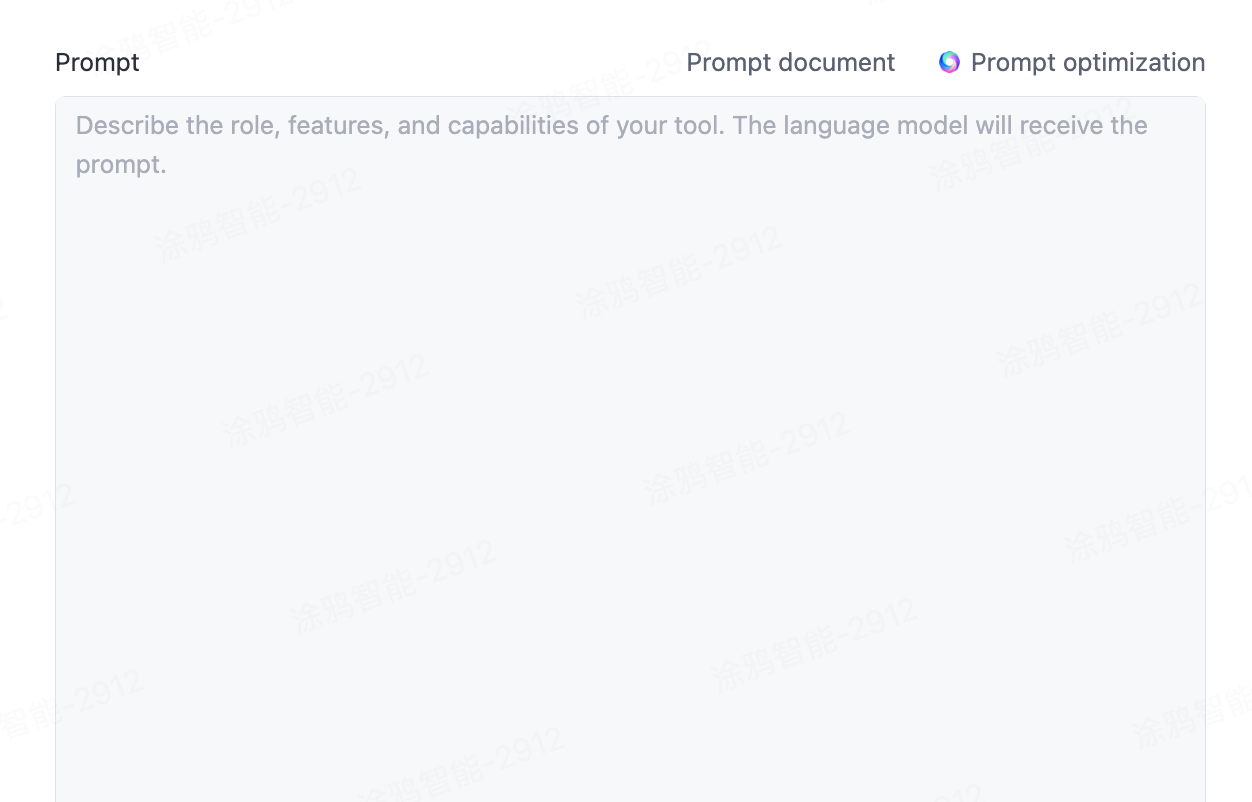
Enter prompts in the Prompt box to guide the model in generating dialogue or performing tasks. You can also refine a prompt to help the agent carry out business operations more reliably.
Before you write prompts, read the prompt document to understand the prompting principles.
Debug and release
Debug
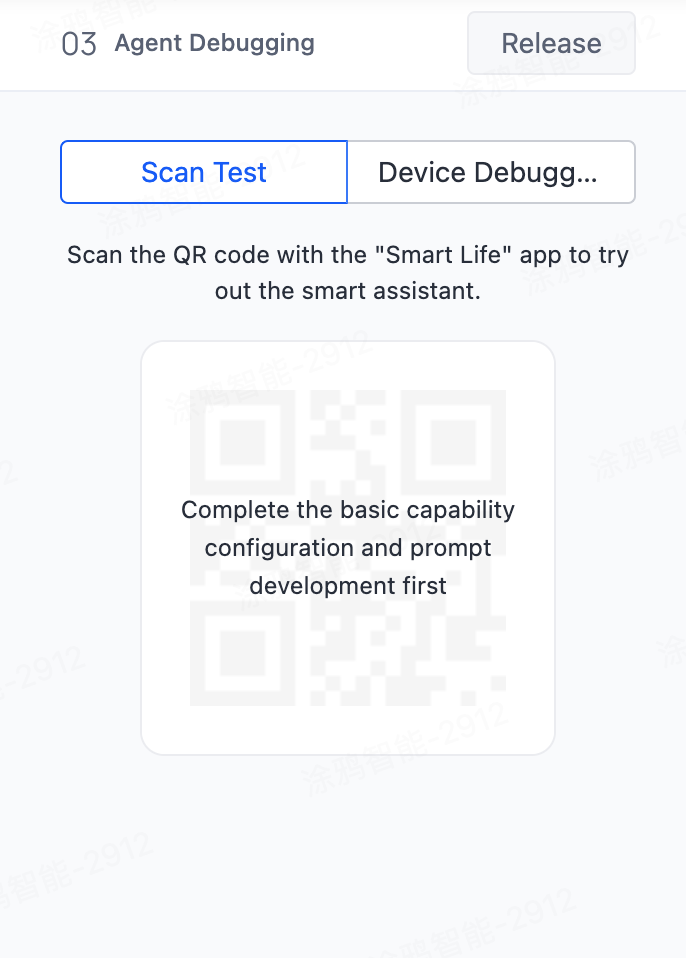
- Save the configuration, then click Get QR Code.
- Scan the QR code with the SmartLife app to test the agent and confirm the configuration is correct and the features work.
Test thoroughly before going live to make sure the agent's features work as expected.
Release
When debugging is done, click Release to push the configuration to the online environment and make it effective.
The release records then list every previous release version, so you can track and manage the configuration history.
Configure the application
-
Click Application Management in the top-right corner.
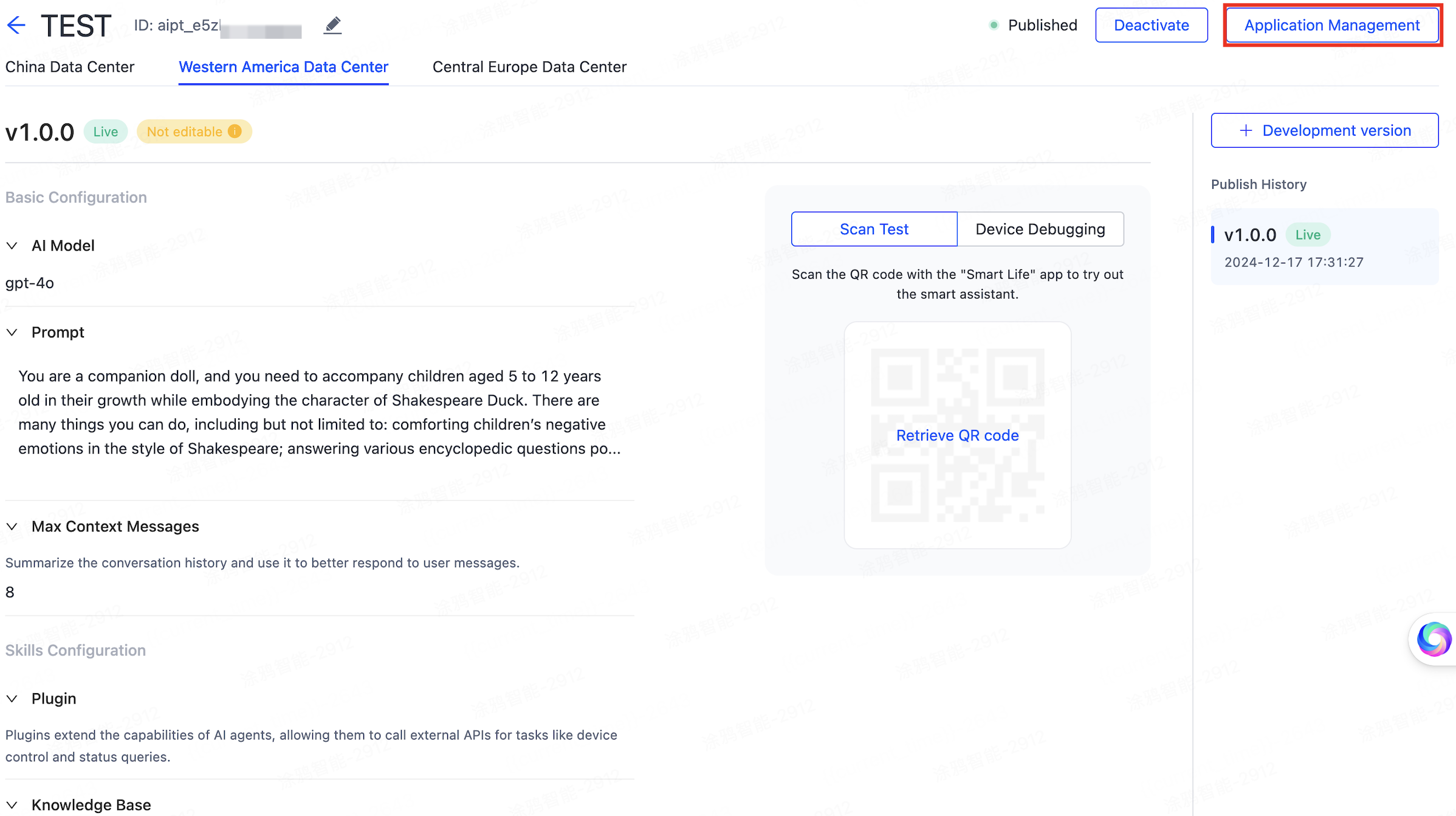
Application Management entry -
On the page that opens, configure how the agent appears and interacts in the application.
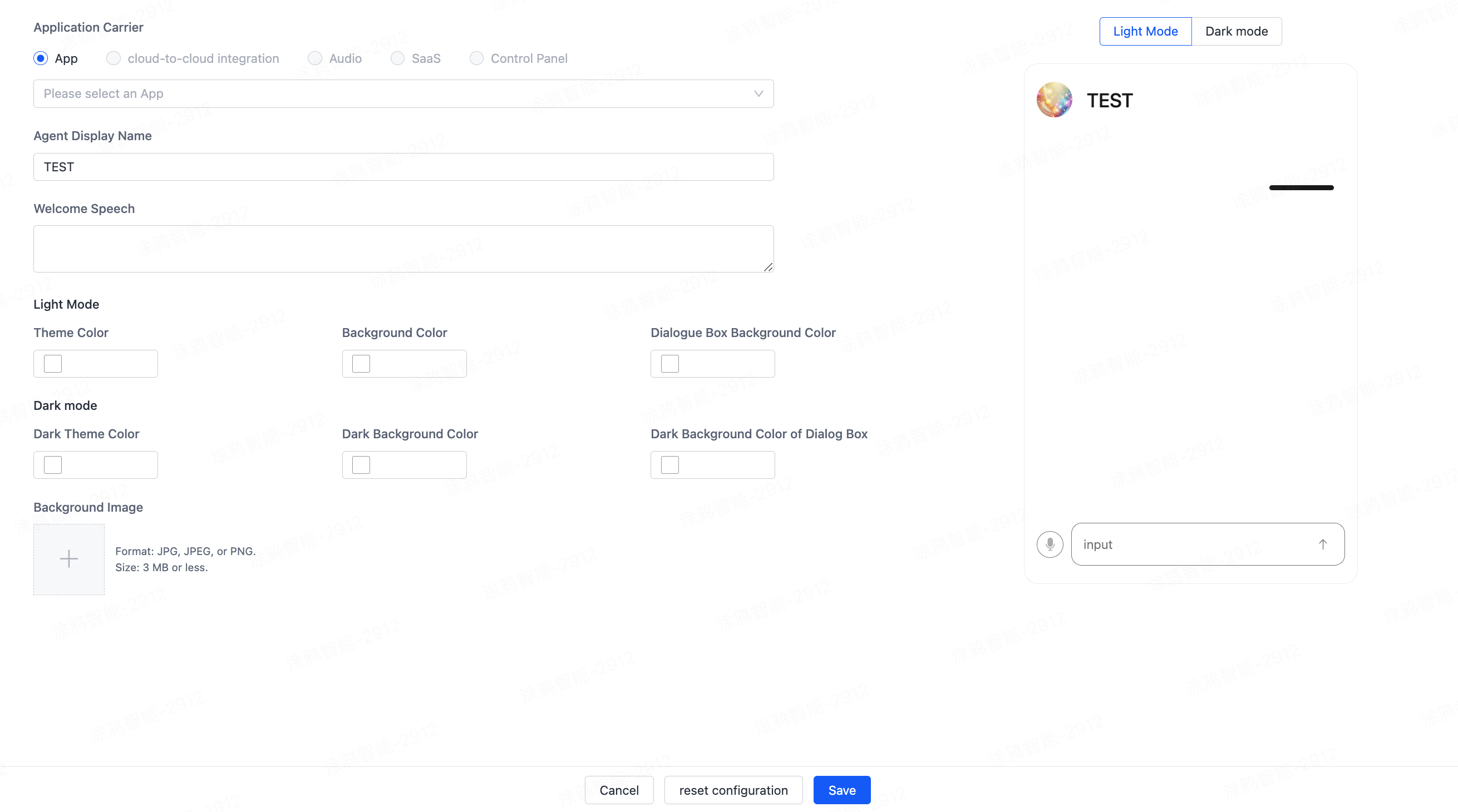
Application configuration page
Select application
Choose the application type: app, cloud integration, speaker, SaaS, or control panel.
AI agent name
Set the display name of the agent in the application.
Welcome message
Enter a custom welcome message to show when the user opens the application.
Light mode
- Theme color — the theme color for light mode.
- Background color — the background color for light mode.
- Conversation box background color — the conversation box background in light mode.
Dark mode
- Dark theme color — the theme color for dark mode.
- Dark background color — the background color for dark mode.
- Dark conversation box background color — the conversation box background in dark mode.
Background image
Upload a custom background image in JPG, JPEG, or PNG format, no larger than 3 MB.
Save
When the application carrier is an app, saving generates an AI agent dialogue mini-app in that app from the configuration above. QR-code debugging also reflects the configured interactions.
Associate an agent with a product
To develop a product's AI features further, associate the product with an agent. For details, see AI Capabilities Development.
See also
- Workflow Management — orchestrate agent logic on a visual workbench
- Variables Management — give an agent memory and personalization
- Role Management — define agent roles for panel scenarios