Self-control Commands
Self-control commands let a device act on what its own user says — "move forward", "lower the volume", "what's the battery level?" — without another device in the loop. You define the commands and their natural-language expressions on the platform, the cloud matches a user utterance to a command after semantic recognition, and the device executes it. They suit smart devices with voice or text interaction, such as AI dolls, AI robots, and smart water dispensers.
Concepts
Self-control commands
A self-control command is an instruction set triggered directly by a user interacting with the device itself. To turn natural language into something the device can execute, you pre-configure these commands on both the device and the cloud. The cloud then delivers the right command after it recognizes the user's intent.
Expression
An expression is one of many phrasings that match a user's natural-language input. Each expression maps to a specific self-control command, which raises recognition accuracy and hit rate.
For example, the command "Turn on the light" can carry expressions such as "Switch the light on", "Turn the lights on", "Activate the lighting", and "Light up the room". A rich expression library lets the system interpret varied phrasing across contexts and trigger the right action.
Self-control commands vs. passive commands
| Type | Definition | Typical scenario and expression | Configured on | Triggered by |
|---|---|---|---|---|
| Self-control commands | The device recognizes voice commands and acts on its own, so the user controls the device's own functions directly. | • AI doll: turn up the volume, check battery level. • Robot: move forward, move backward, dance. | The device itself. | The user speaks to the device (voice/text). |
| Passive commands | The device is controlled by another device for cross-device automation, such as a speaker controlling an air conditioner. | • Smart speaker controls the air conditioner: set the temperature higher. • Lights: turn up the lights. Note: the target device must be specified explicitly. | The controlled device. For cross-device control such as a speaker controlling lights, the target device (the light) needs passive commands configured so it can accept external commands. | The user issues voice/text commands to the main control device. |
When to use self-control commands
Configure self-control commands when a device must understand and respond to user voice or text commands on its own. This supports:
- Devices with built-in voice interaction, for direct user-to-device execution — AI dolls, robots, water dispensers. Examples: "lower volume", "check battery level".
- Devices with native hardware control that need custom semantic handling across many phrasings. Examples: "play a story", "do a dance", "heat the water".
- Custom expressions, intents, and slot configurations defined on the platform.
Use cases
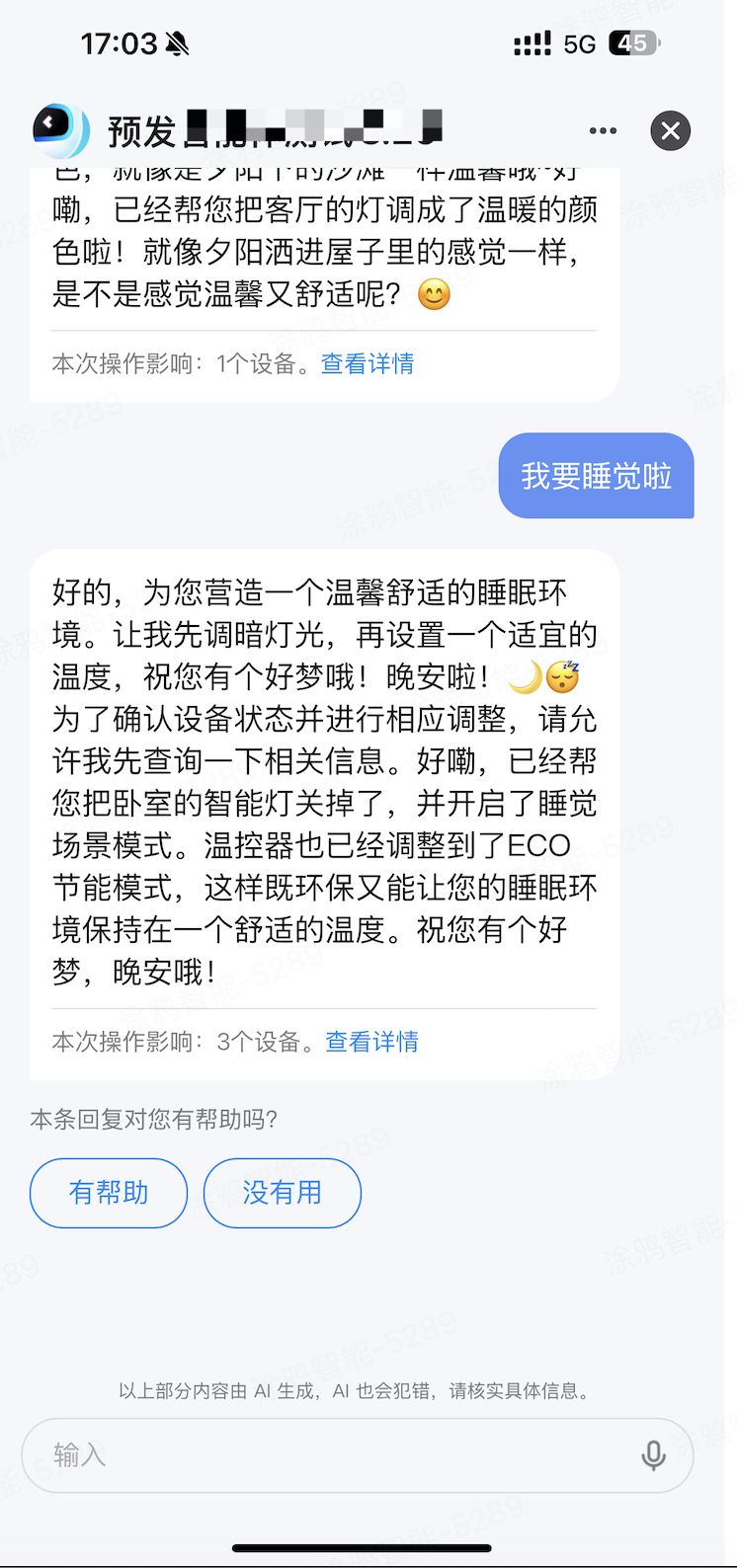
Home lighting control
Thermostat control
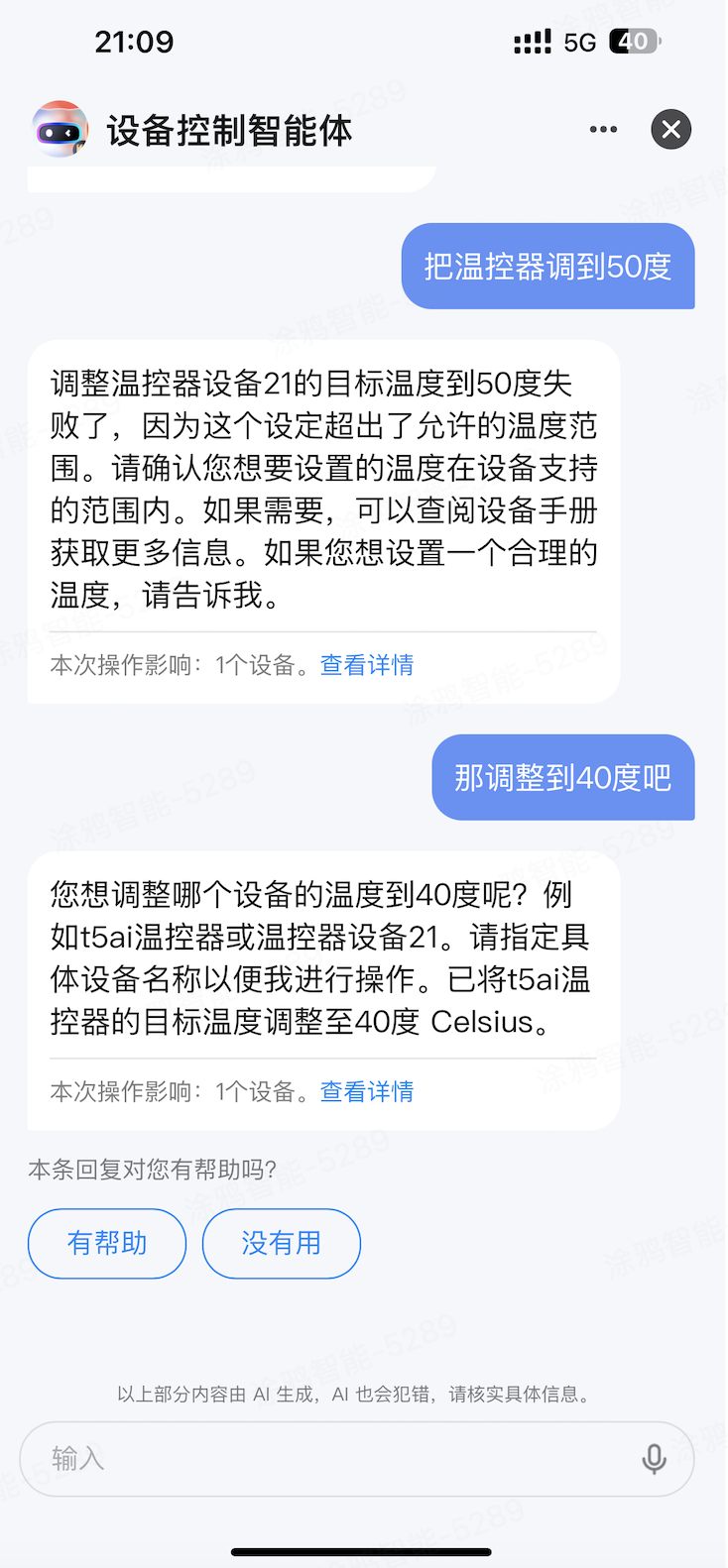
When a device's PID has AI commands configured (such as thermostat temperature settings) and the agent has the Device Control plugin enabled, chatting with the AI controls the device.
Prerequisites
- Develop firmware with Wukong SDK v3.12.12 or later. Self-control skills are not available before v3.12.12.
- App v6.7.0 or later is required for miniapp or panel-based device control.
- Platform configuration:
-
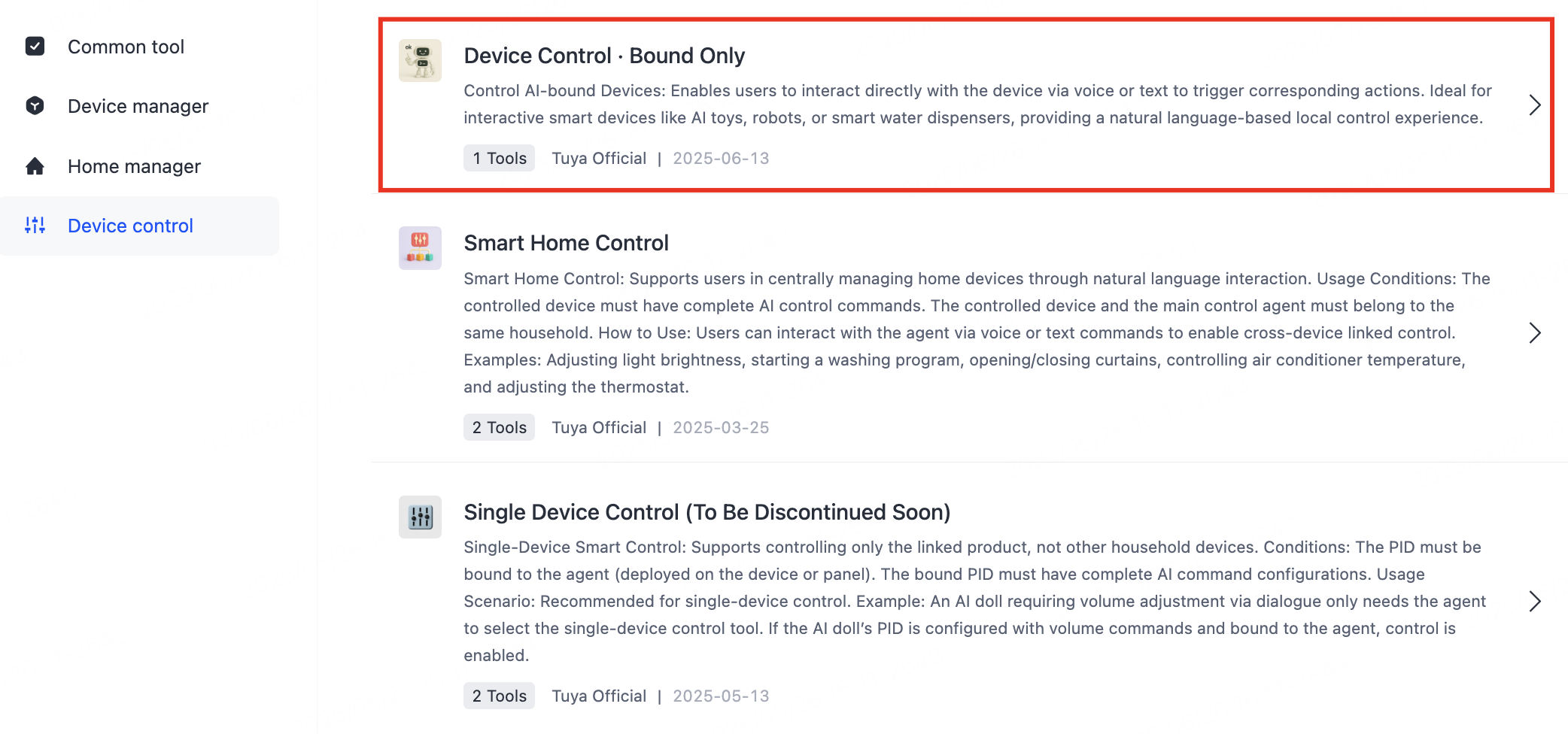
Bind an AI agent in the product's AI capabilities and enable the Device Control skill for that agent.
Device Control skill enabled for the agent -
Configure and release self-control commands for the product.
-
Configurations take effect about 20 minutes after release.
Step 1: Configure DP commands
DP command configuration is the foundation of device self-control.
-
Log in to the Tuya Developer Platform.
-
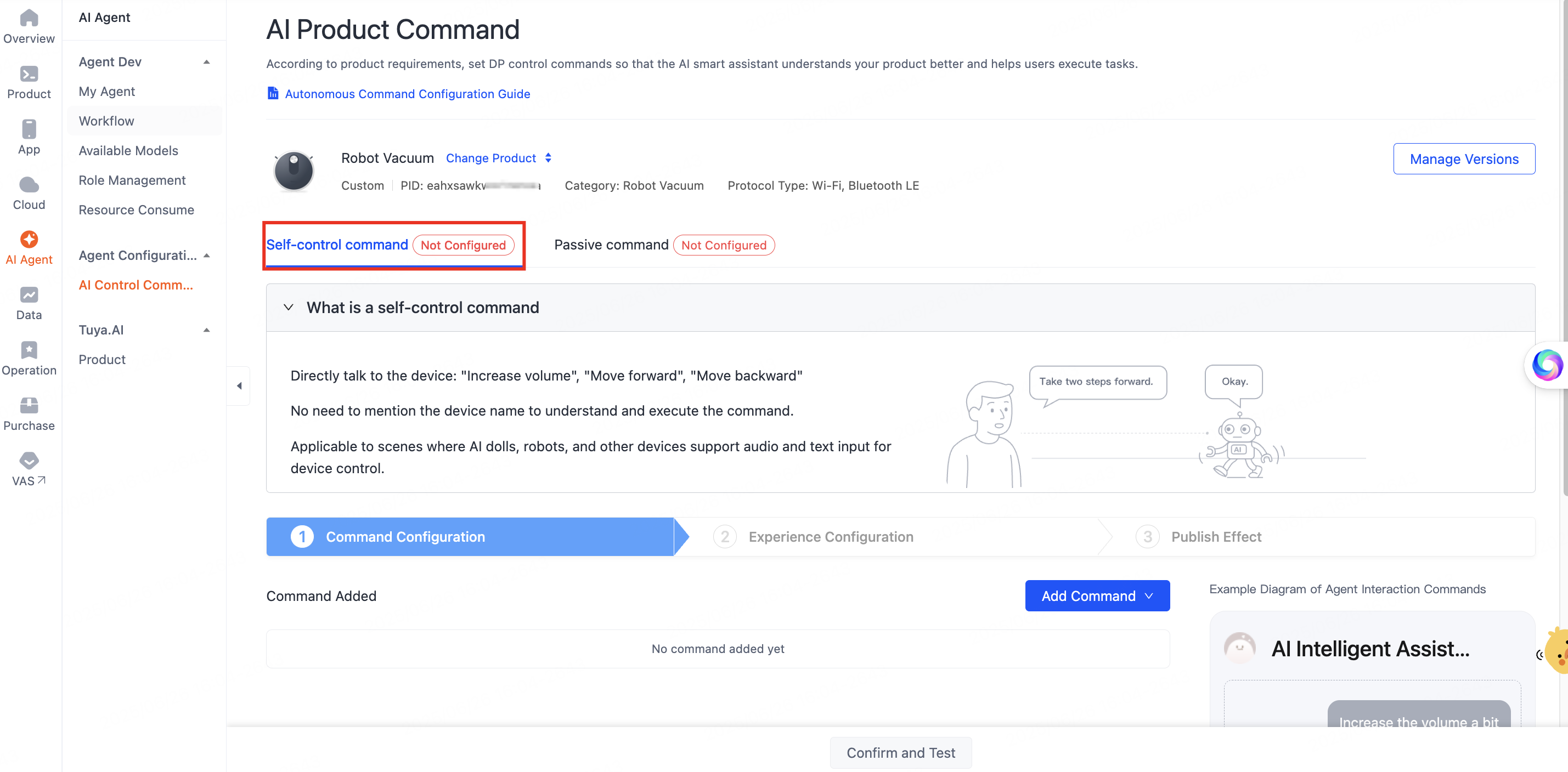
In the left navigation bar, choose AI Agent > Agent Configuration > AI Control Command Configuration to open the AI Product Command page.
-
Click the Self-control command tab.
Self-control command tab
If the product has pre-configured commands, the page shows the functional commands already set for that product category. Click Modify command solution at the bottom to confirm changes to the existing version, then click OK.
Release the command solution again after you modify it.
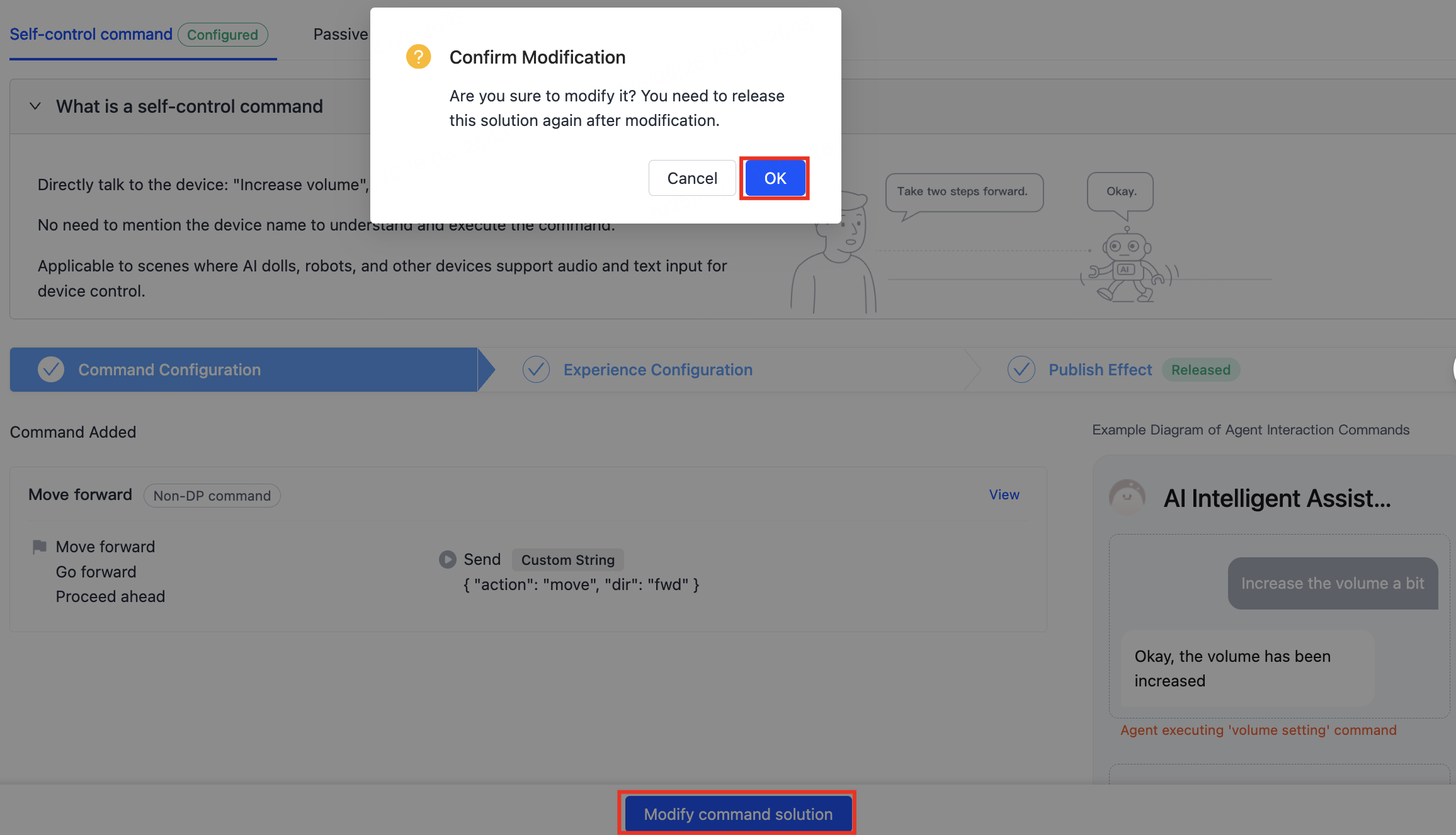
Then add DP commands or non-DP commands as needed. For detailed steps, see:
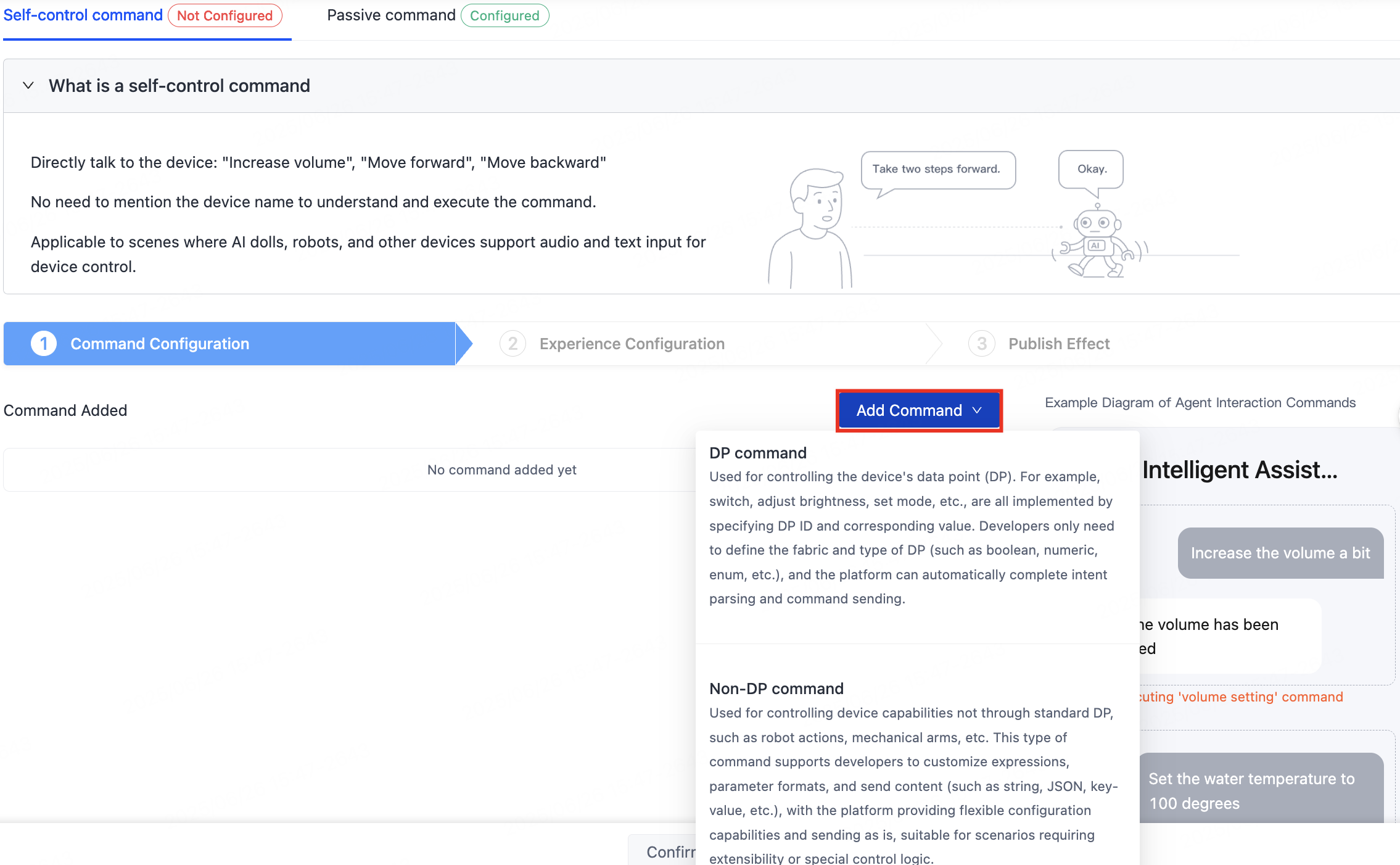
Add DP commands
DP commands are data points that control a device — power on/off, brightness, modes. Once you define the DP structure and type, the platform parses intent and delivers the command automatically.
Click Add Command, select DP command, then complete the configuration on the Create Self-Control Command page:
- Select language
- Select DP
- Select command type
- Set synonyms
- Set expressions
- Expression examples
- Save configurations
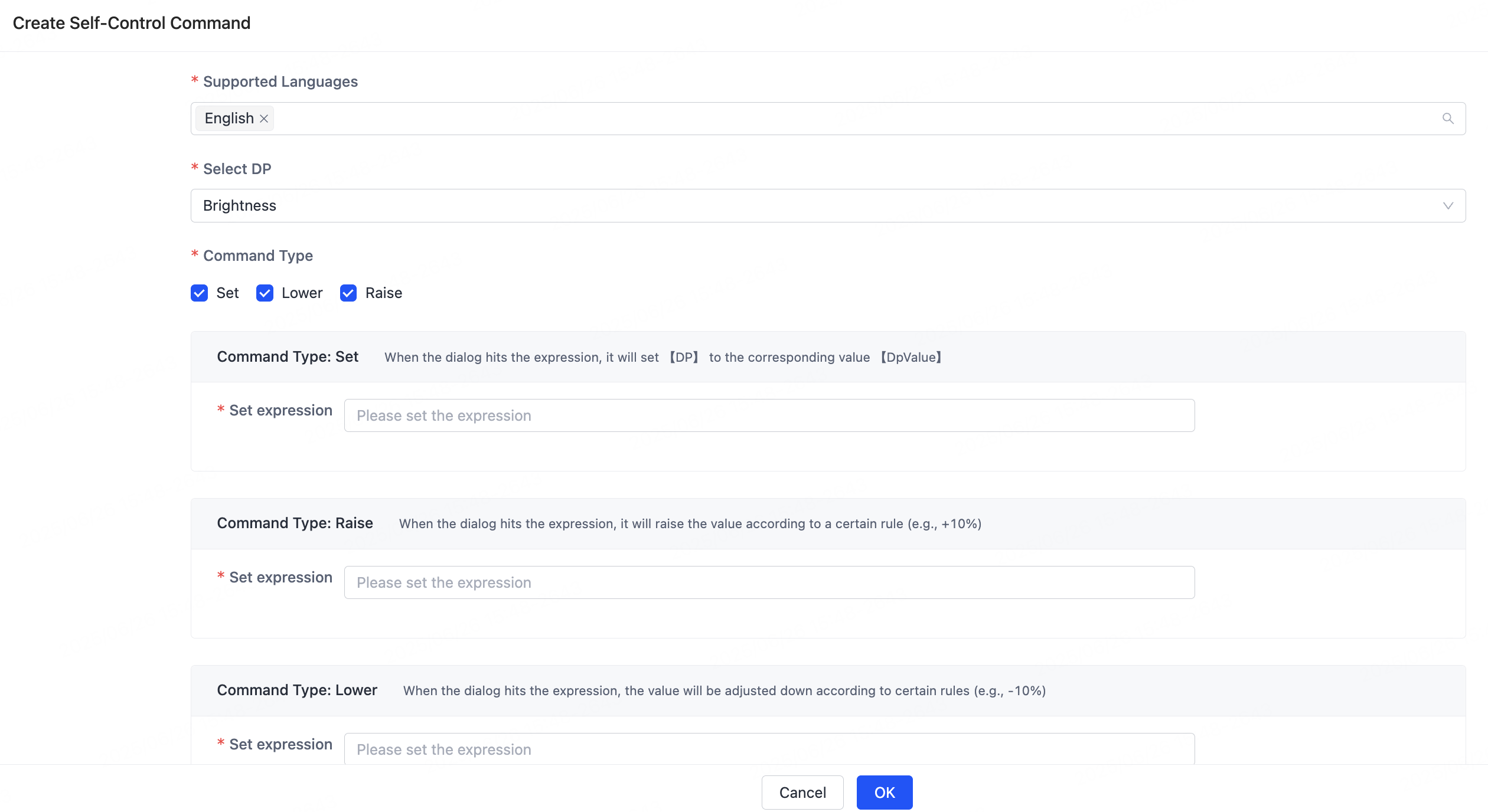
Select language
Select the languages this command supports, used to match expressions locally:
- For Chinese interaction, select Chinese and provide expressions in Chinese.
- For multilingual control, add multiple languages and configure expressions for each.
Language selection affects matching accuracy. Configure it for your users' actual languages.
Select DP
Select the DPs to control in the device function definition. The platform supports these DP types:
Bool: BooleanEnum: EnumerationValue: Numeric valueString: String
The Raw type is not supported yet.
Select command type
The command types you can configure depend on the DP type:
| DP type | Configurable command type |
|---|---|
| Bool | Set. For example, on/off. |
| Enum | Set. For example, switch to a specific mode. |
| Value | Set, raise, lower. For example, set brightness to 80%, raise the temperature. |
| String | Set. For example, play a specific song. |
Set synonyms
Set synonyms for DP values to normalize varied phrasing so the right command is triggered.
Example:
- DP value
on— synonyms:start,activate,enable. - DP value
off— synonyms:shut down,sleep,stop.
How to configure:
- Add multiple synonyms under each DP value for flexible matching.
- Use the
#dpValue#placeholder in expressions to reference a matched synonym dynamically.
You can set synonyms only for Boolean and enumeration DPs.
Set expressions
Expressions match users' natural-language input and trigger the matching command. Guidelines:
- Each expression should represent a typical phrasing. Example:
- Turn on the bedroom light
- Set the fan to level 3
- Use placeholders for reuse. Example:
#percentValue#: percentage values for numeric DPs.#dpValue#: DP value synonyms.
Expression examples
| Device type | Command type | DP type | Expression example | Value description |
|---|---|---|---|---|
| AI doll | DP | Value | Set the volume to #dpValue# | DP: volume (such as DP ID: 101), value = #number# |
| DP | Value | Increase the volume a bit | DP: volume, value = current value + 10 (example) | |
| DP | Value | Lower the volume | DP: volume, value = current value - 10 (example) | |
| Robot | Non-DP | - | Move forward | Custom value: forward (example) |
| Non-DP | - | Move backward | Custom value: backward (example) | |
| Non-DP | - | Do a dance for me | Custom value: dance (example) | |
| Non-DP | - | Turn left | Custom value: left (example) | |
| Non-DP | - | Walk a few steps to the right | Custom value: walk (example) |
- DP-based devices (such as AI dolls): the platform sends a specific DP (such as volume) and assigns the value dynamically using the
#dpValue#placeholder in expressions. - Non-DP devices (such as robots): you define custom action commands (such as
forwardanddance), parsed and executed on the device.
Save configurations
After completing the configuration, save it to see the command in the solution list.
Add non-DP commands
Non-DP commands apply when a device does not rely on platform-defined DPs but uses custom control commands instead. Devices with custom protocol parsing — robots, robotic arms — use non-DP commands.
Click Add Command and select Non-DP command. On the Create Self-Control Command page, complete:
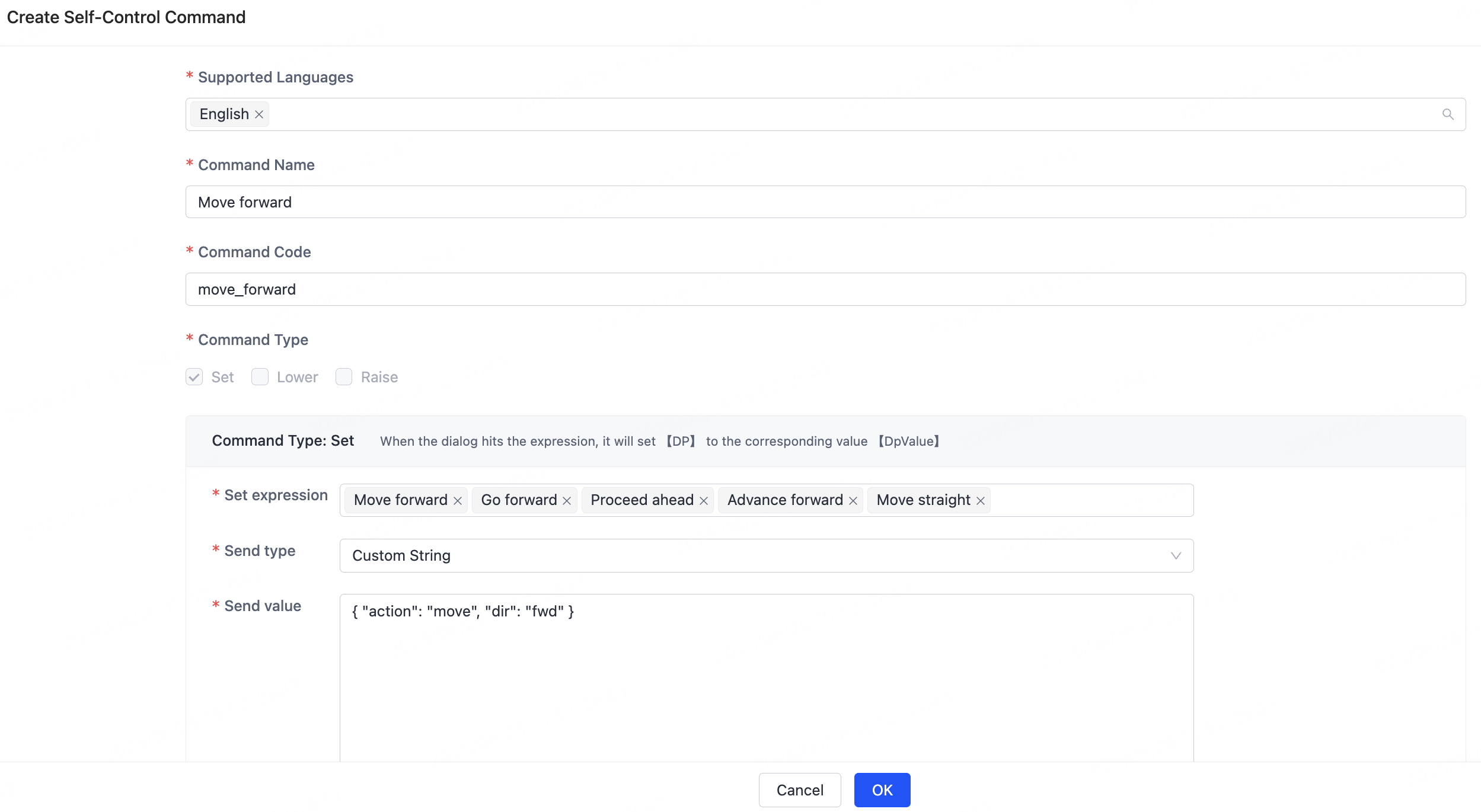
Select language
Select the languages the command supports to enable multilingual interaction. Each language needs its own expressions.
Example:
- Devices for Chinese-speaking markets must include Chinese expressions.
- For English control, configure English expressions alongside Chinese ones.
Set custom command code
Configure a custom code for each non-DP command to identify the action the device performs.
The command code is the unique identifier the device uses to recognize the command. Keep it concise and clear.
Set expressions
Configure multiple expressions per command so users can use varied voice or text input for the same command.
Use placeholders like #dpValue# to make expressions more versatile and scalable.
Set the value
Devices receive and parse a custom-formatted value through a non-DP command.
- You can send a value in custom JSON, a string, or a protocol-specific format.
- The device developer defines the value's format and parsing logic entirely.
Example:
| Command code | Payload (example) | Description |
|---|---|---|
| forward | { "action": "move", "dir": "fwd" } | Move forward |
| dance | "action_dance" | Do a dance (string-based) |
| turn_left | { "cmd": "turn", "value": "left" } | Turn left |
- The platform only transmits the value to the device; execution logic runs on the device.
- Non-DP commands give custom-protocol devices more control flexibility. Combine custom expressions, command codes, and values to build varied human-machine interactions.
After you configure the command solution, click Confirm and Test.
Step 2: Test the configuration
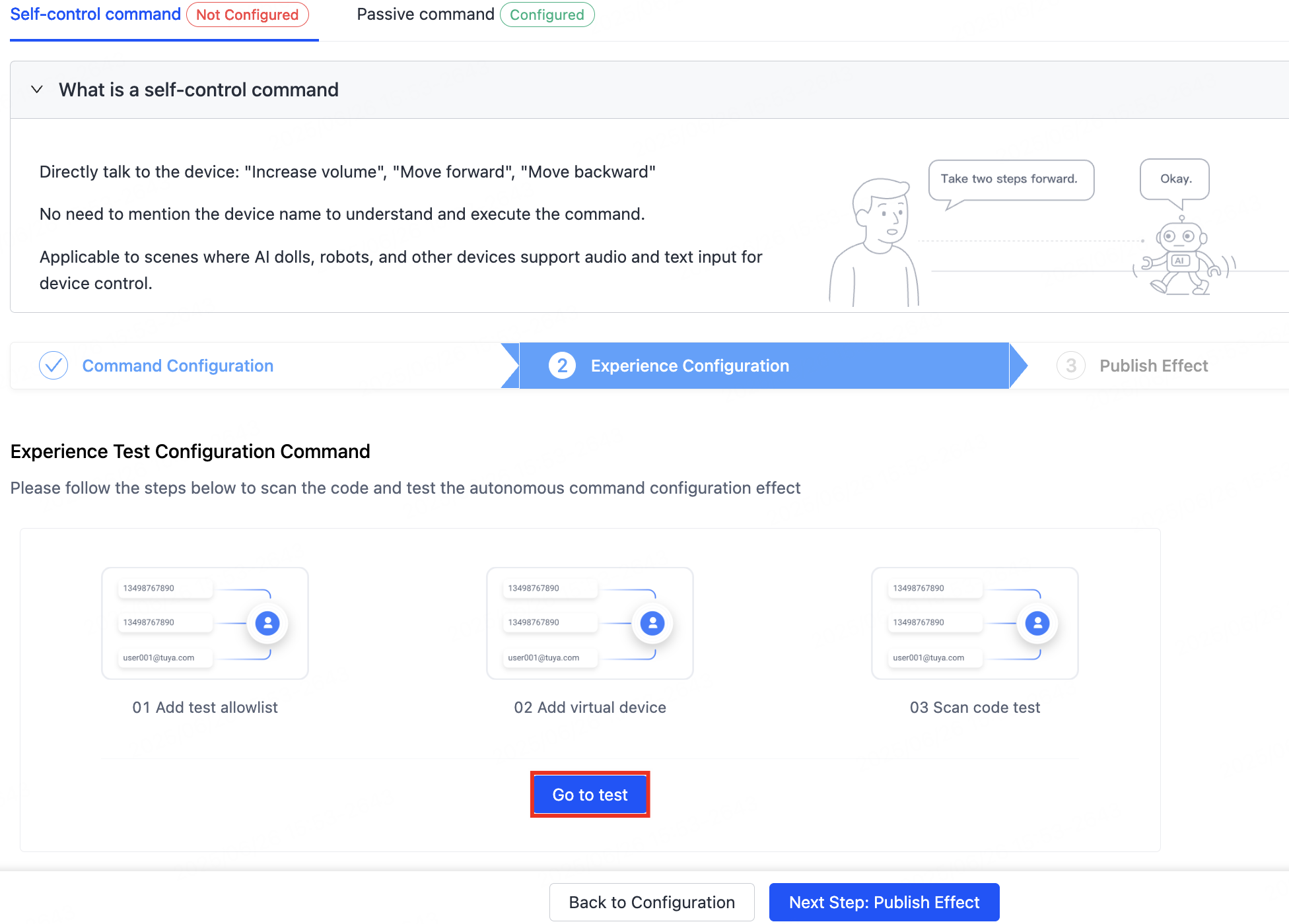
Click Go to test and follow the steps:
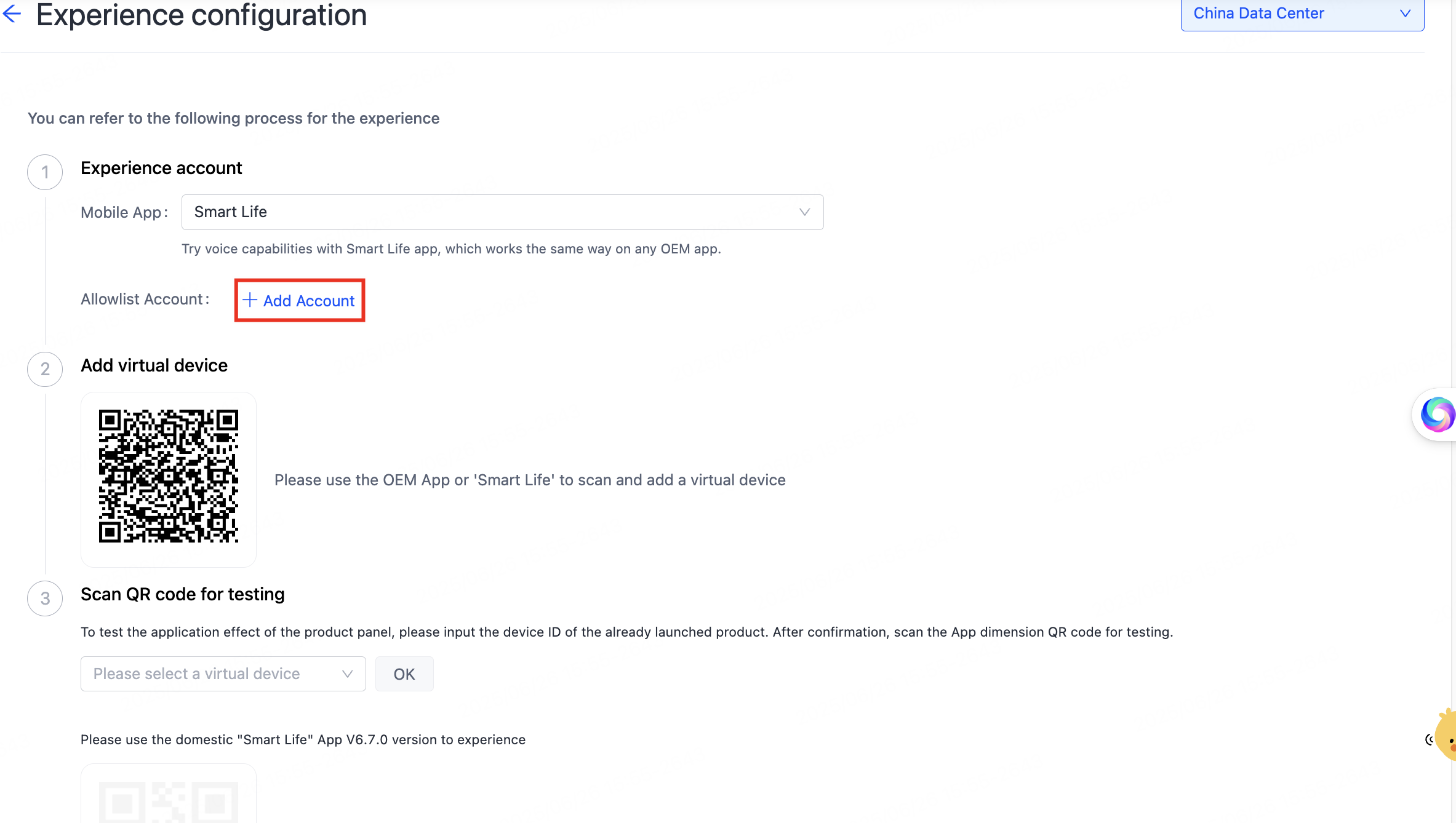
- Configure allowlist accounts. Under Allowlist Account, click Add Account. Select the mobile app, add the accounts, then click Save. You can add up to three accounts.
- Add a virtual device. Use the OEM app or the SmartLife app to scan the QR code and add the virtual device.
- Scan and test. Scan the QR code to enter the AI Smart Assistant and test.
Step 3: Publish
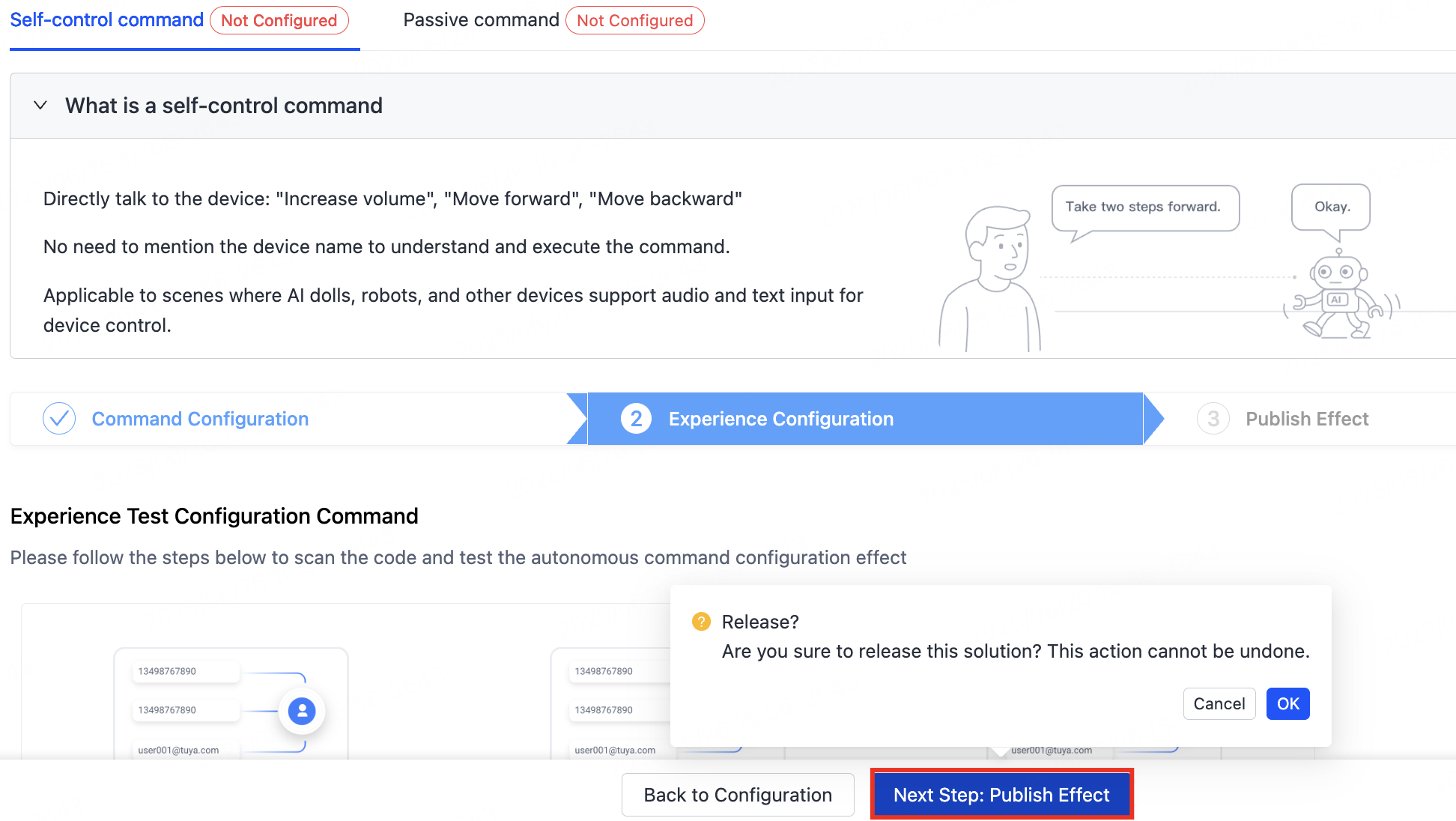
Click Next Step: Publish Effect to publish the commands. Confirm the settings and click OK.
Published commands cannot be revoked.
The page then shows Released.
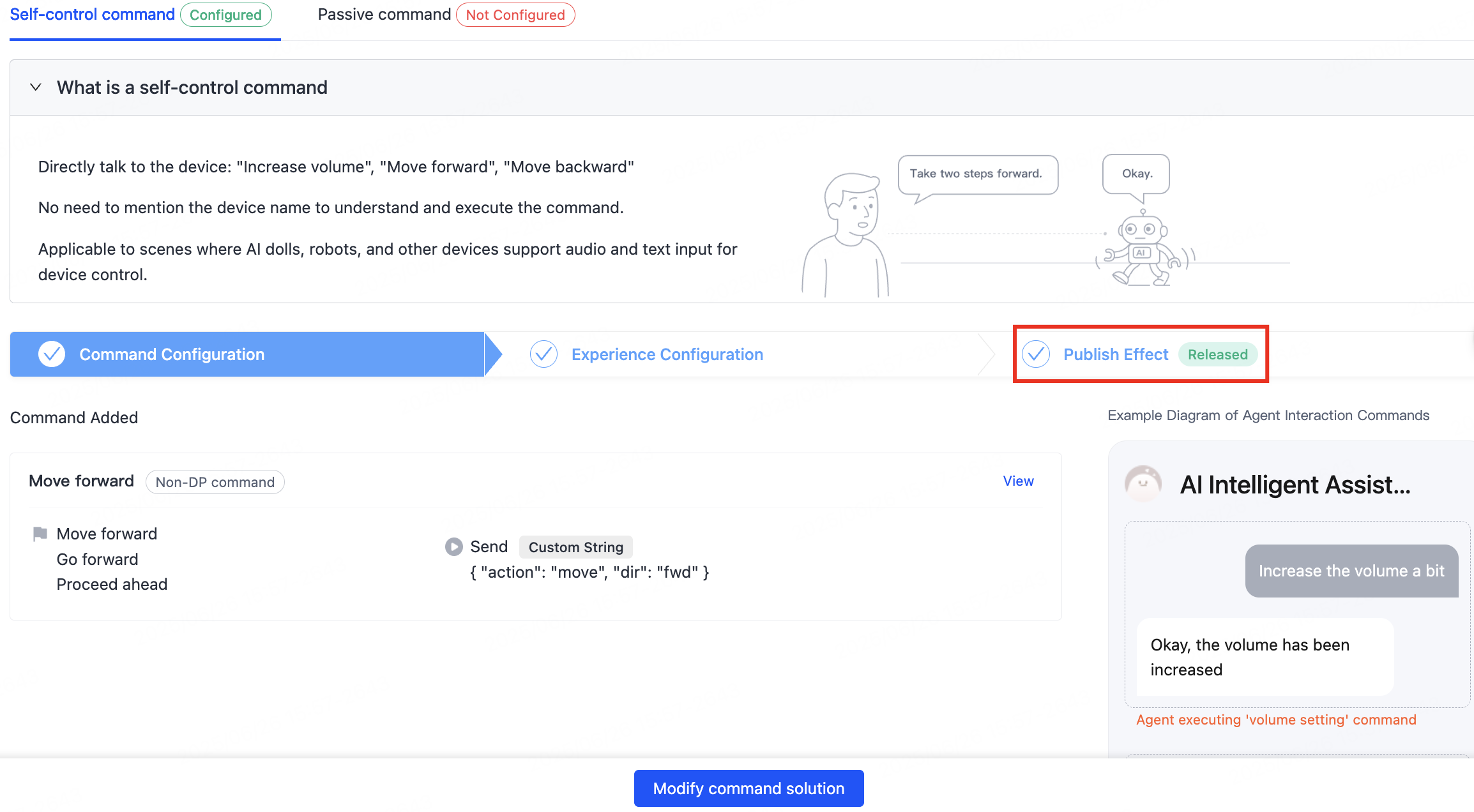
Manage versions
Click Manage Versions to view and edit versions on the History Version page.
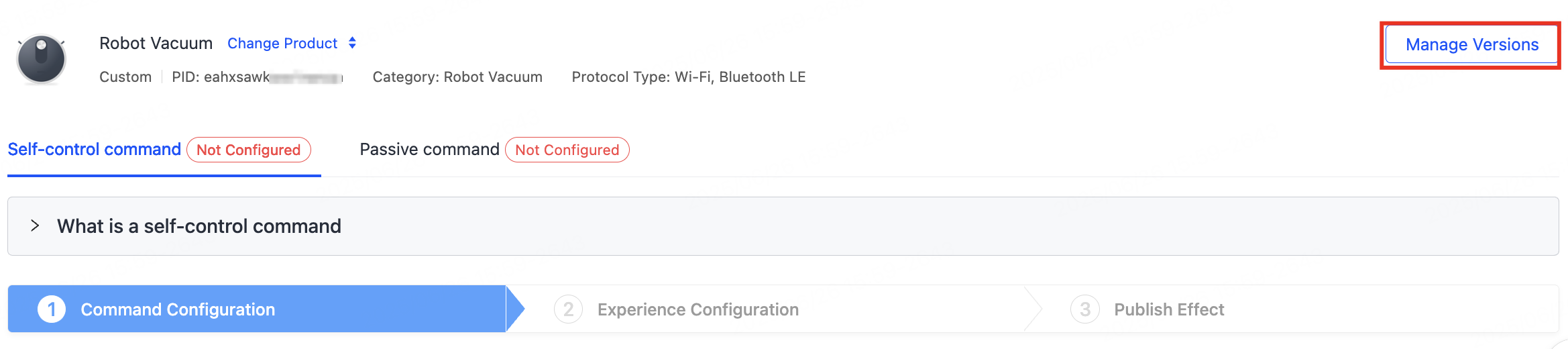

Click Add Version to test a configuration and release a new version.

See also
- AI Product Commands — companion command configuration
- Role Management — give the device a persona to act through