Run your_chat_bot on DshanPi-A1
Run the TuyaOpen your_chat_bot voice assistant on the DshanPi-A1 board. Unlike a Raspberry Pi, the DshanPi-A1 has a built-in microphone and speaker, so the two board-specific steps are configuring the onboard sound card and pointing the firmware at the wake-word model.
Prerequisites
Read the Quick Start and its sub-sections first:
- Set up the TuyaOpen development environment.
- Obtain a TuyaOpen authorization code. The header-file method is recommended.
- Understand device network configuration.
your_chat_bot is a cloud-paired AI application. You need a valid authorization code (授权码) before the device can connect and respond.
Build methods
DshanPi-A1 supports two build methods:
- Cross-compilation: build on a PC, then transfer the binary to the board and run it.
- Native build: build directly on the board.
The build system detects the current platform and selects the appropriate method automatically.
Cross-compilation is not supported on macOS. Use Linux, or build directly on the board.
Step 1: Configure the onboard sound card
The DshanPi-A1 has a built-in microphone and speaker, but they must be configured before use.
Install the audio library
Install the ALSA library for audio input and output:
sudo apt-get install libasound2-dev
Configure speaker output
The DshanPi-A1 has two audio outputs: the headphone jack and the onboard speaker. To set the onboard speaker as the default output, edit the audio configuration file:
sudo vi /etc/asound.conf
Add the following content:
pcm.speaker_r {
  type route
  slave.pcm "hw:0,0"
  slave.channels 2
  ttable.0.1 1
  ttable.1.1 0
  ttable.0.0 0
  ttable.1.0 0
}
Save and exit (press ESC, type :wq, then press Enter).
Step 2: Configure the wake-word model
The KWS (Keyword Spotting) model lets the device recognize the wake word "你好涂鸦" (Hello Tuya). Obtain the model files, then point the firmware at them.
Obtain the model files
Option 1: Automatic download
When you build for the DshanPi-A1 platform, the model is downloaded automatically to:
platform/LINUX/tuyaos_adapter/src/tkl_audio/models
Option 2: Manual download
Download mdtc_chunk_300ms.mnn and tokens.txt to ~/tuyaopen_models:
wget -P ~/tuyaopen_models https://github.com/tuya/TuyaOpen-ubuntu/raw/platform_ubuntu/tuyaos_adapter/src/tkl_audio/models/mdtc_chunk_300ms.mnn
wget -P ~/tuyaopen_models https://github.com/tuya/TuyaOpen-ubuntu/raw/platform_ubuntu/tuyaos_adapter/src/tkl_audio/models/tokens.txt
The default path in the code is ~/tuyaopen_models. To use a different path, configure it as shown below.
Set the model path
-
Go to the project directory:
cd apps/tuya.ai/your_chat_bot -
Select the DshanPi-A1 configuration:
tos.py config choiceIn the menu, choose
DshanPi_A1.config. -
Open the config menu:
tos.py config menu -
Navigate to
(Top) → Choice a board → LINUX → TKL Board Configuration. -
Set these two options to the actual paths of the model files:
KWS model file path— full path tomdtc_chunk_300ms.mnnKWS model token file path— full path totokens.txt
Configuration example
When the model files are in ~/tuyaopen_models, configure the paths like this:
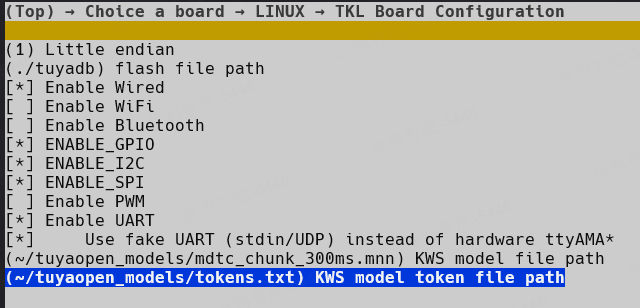
Set the paths correctly. Otherwise the wake-word feature does not work.
Transfer the binary (cross-compilation only)
If you cross-compile on a PC, copy the built executable to the board with scp:
scp ./dist/your_chat_bot_1.0.1/your_chat_bot_QIO_1.0.1.bin username@192.168.1.xxx:~/
Parameters:
username— username on the board192.168.1.xxx— IP address of the board~/— target directory on the board
Run the executable
./your_chat_bot_QIO_1.0.1.bin
your_chat_bot_QIO_1.0.1.bin is the executable file name.
On the first run, you must perform device network configuration (pairing). If pairing or network connection fails, delete the tuyadb folder and run the program again.
FAQ
The voice wake word does not work.
Check that the model file paths are correct and the files are complete. Run ls -lh to confirm the files exist and their sizes are as expected.
The executable does not run.
Check that the executable has execute permission. Run chmod +x your_chat_bot_QIO_1.0.1.bin to grant it.