Raspberry Pi Provisioning Troubleshooting
Fix Wi-Fi and Bluetooth problems that block provisioning when you run a TuyaOpen app on Raspberry Pi (for example, apps/tuya.ai/your_chat_bot). Each section below states the symptom, the cause, and the fix.
Prerequisites
Read the Quick Start and its sub-sections first:
- Set up the TuyaOpen development environment.
- Obtain a TuyaOpen authorization code. The header-file method is recommended.
- Understand device network provisioning.
Provisioning fails or the device will not re-pair
Problem. On the first run the app cannot enter the provisioning flow, or a previously paired device fails to connect to the network.
Cause. The app stores device data (including pairing state) in a tuyadb folder in its working directory. Stale data can block re-provisioning.
Fix. Clear the device data and run again:
-
Stop the running program.
-
Delete the
tuyadbfolder in the program's working directory:rm -rf tuyadb -
Run the program again and re-enter the provisioning flow.
No provisioning QR code in the terminal
Problem. The app starts but the terminal never prints the provisioning QR code, so you cannot scan it.
Cause. By default the QR code is sent over UART0. On Raspberry Pi, UART0 may go to a hardware serial line instead of your terminal. Redirecting UART to standard output prints the QR code where you can see it.
Fix. Enable UART redirection (the "Dummy UART" stdin/stdout/UDP mode):
-
Activate the
tos.pyenvironment and enter the app directory (usingyour_chat_botas an example):cd apps/tuya.ai/your_chat_bot -
Open the configuration menu:
tos.py config menu -
Go to
Choice a board → LINUX → TKL Board Configurationand enable:Enable UARTUART redirection (stdin/stdout/UDP) instead of hardware ttyAMA*
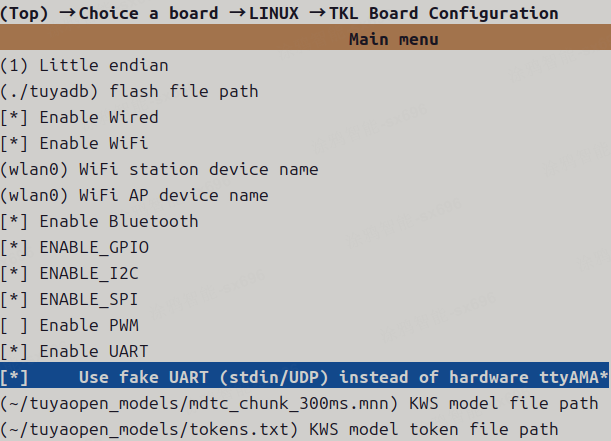
After you enable UART redirection, the app prints the QR code to the current terminal during provisioning. Scan it with the Tuya Smart app to provision the device.
Wi-Fi or Bluetooth is disabled by the OS
Problem. Bluetooth scanning or provisioning fails — BLE does not work, or the device is not discoverable — and Wi-Fi may also be unavailable.
Cause. The OS can disable the radios with rfkill, either in software (Soft blocked) or hardware (Hard blocked, for example a physical switch).
Fix.
-
Check the Wi-Fi and Bluetooth status:
rfkill listExample output:
0: hci0: BluetoothSoft blocked: noHard blocked: no1: phy0: Wireless LANSoft blocked: yesHard blocked: noSoft blocked: yesmeans the device is disabled in software.Hard blocked: yesmeans the device is disabled in hardware (for example, a physical switch). Remove the hardware block first.
-
Unblock in software:
sudo rfkill unblock allTo unblock a specific item:
sudo rfkill unblock wifisudo rfkill unblock bluetooth
Bluetooth provisioning still fails after unblocking
Problem. The radios are not blocked, but Bluetooth provisioning still does not work.
Cause. The TuyaOpen Bluetooth service may be disabled in the build configuration, or a configuration change was not rebuilt.
Fix. In tos.py config menu, verify the Bluetooth service is enabled:
configure tuyaopen  --->
  configure tuya cloud service  --->
    [*] ENABLE_BT_SERVICE: enable tuya bt iot function  --->
      [ ] ENABLE_NIMBLE: enable nimble stack instead of ble stack in board
Recommended settings:
- Enable the Bluetooth service.
- Keep
NIMBLEdisabled.
After changing the configuration, rebuild (for example, run tos.py build). Otherwise the change does not take effect.
Permission errors when accessing the radios
Problem. The app fails to open /dev/* nodes or system service interfaces at runtime.
Cause. Wi-Fi, Bluetooth, and peripheral operations on Raspberry Pi usually require elevated permissions.
Fix. Run the generated executable with sudo:
sudo ./your_chat_bot_*.elf