GUI - tyutool Graphical Tool
Overview
tyutool is the flashing and device-authorization tool for TuyaOpen. It writes firmware to a device over a serial port and writes the device authorization credentials (UUID and AuthKey). tyutool ships in two versions: GUI (graphical interface) and CLI (command line). This page covers the GUI.
The authorization function of tyutool applies only to the TuyaOpen project, not the TuyaOS project. A TuyaOpen authorization code is valid only for TuyaOpen, and a TuyaOS authorization code is valid only for TuyaOS. The two are not interchangeable.
tyutool runs on Windows, Linux, and macOS. Choose the version that matches your operating system.
tyutool is currently available in two versions, V2 and V3, with the following key differences:
- V3 (latest): Completely rewritten with a Rust (Tauri 2) + Vue 3 architecture for better cross-platform compatibility. Recommended for Mac users. Now supports batch flashing and authorization; audio debugging is not yet supported.
- V2: Original architecture with full feature support, including audio debugging.
V3 does not yet support V2's audio debugging — download V2 if you need it. For the complete V3 feature set (flashing, serial debug, settings, batch flash & auth, CLI reference), see the tyutool V3 usage guide.
| Platform | Source (Recommended) |
|---|---|
| Github | github-source |
| Gitee | gitee-source |
Release download links by version:
| Version | Github |
|---|---|
| V3 (Recommended for Mac) | v3.0.8 |
| V2 | v2.3.2 |
V3 recommended downloads by platform (x.x.x in filenames is the version number — check Releases for the latest version)
| Platform | Recommended File | Auto-update | Notes |
|---|---|---|---|
| Windows x86_64 | ★ tyutool-gui_windows_x86_64_nsis_x.x.x.exe | ✅ | NSIS installer |
| Windows x86_64 | tyutool-gui_windows_x86_64_portable_x.x.x.zip | ❌ | Portable, no install needed |
| macOS Universal | ★ tyutool-gui_macos_universal_dmg_x.x.x.dmg | ✅ | DMG installer |
| macOS Universal | tyutool-gui_macos_universal_portable_x.x.x.tar.gz | ❌ | Extract and run |
| Linux x86_64 | ★ tyutool-gui_linux_x86_64_appimage_x.x.x.AppImage | ✅ | Run after chmod +x, cross-distro |
| Linux aarch64 | ★ tyutool-gui_linux_aarch64_appimage_x.x.x.AppImage | ✅ | Run after chmod +x, cross-distro |
| Linux x86_64 | tyutool-gui_linux_x86_64_deb_x.x.x.deb / _rpm_x.x.x.rpm | ❌ | Debian / Fedora·RHEL |
| Linux aarch64 | tyutool-gui_linux_aarch64_deb_x.x.x.deb | ❌ | Debian-based |
| Linux x86_64 / aarch64 | tyutool-gui_linux_*_portable_x.x.x.tar.gz | ❌ | Extract and run |
The tos.py flash command ultimately calls the tyutool_cli tool. The tyutool_gui tool is a graphical interface built on top of tyutool_cli.
The following will introduce the usage instructions for flashing and authorization with the tyutool_gui tool.
Firmware Flashing
After opening tyutool_gui, the interface is displayed as follows:
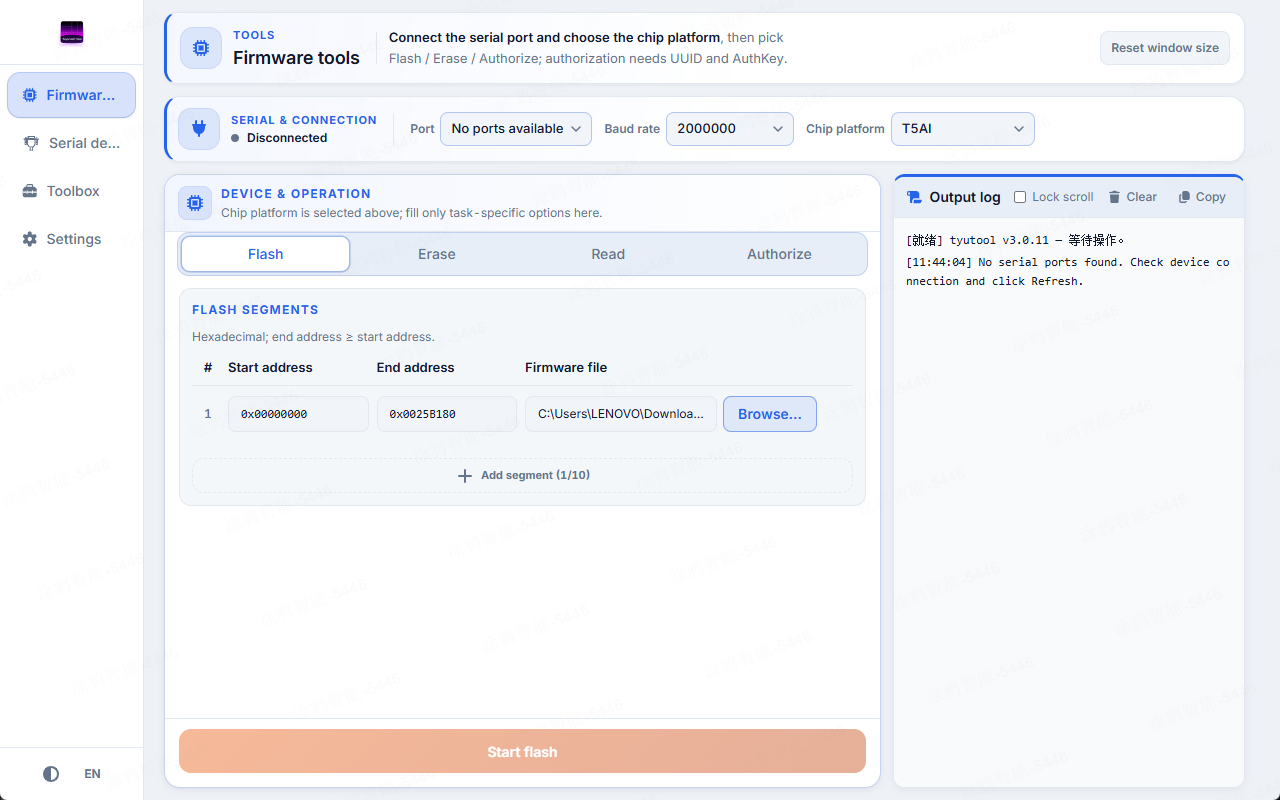
- Select the chip.
- Click
Browseand select the firmware file to flash (the bin file containing_QIO). - Select the device port for flashing. For Tuya official development boards and some partner development boards, hovering over a serial port indicates whether it is a flashing/authorization port or a log port.
- Click
Start flashto begin flashing the firmware.
The default baud rate for flashing is 921600. If you find the flashing speed too slow, you can increase the baud rate appropriately. However, increasing the baud rate may cause the firmware flashing to fail.
Device Authorization Information Writing
To use the Tuya IoT platform, you must first authorize the device. Use the tyutool_gui tool to write the authorization credentials as follows.
After opening tyutool_gui, click the Authorize tab. The interface is as follows:
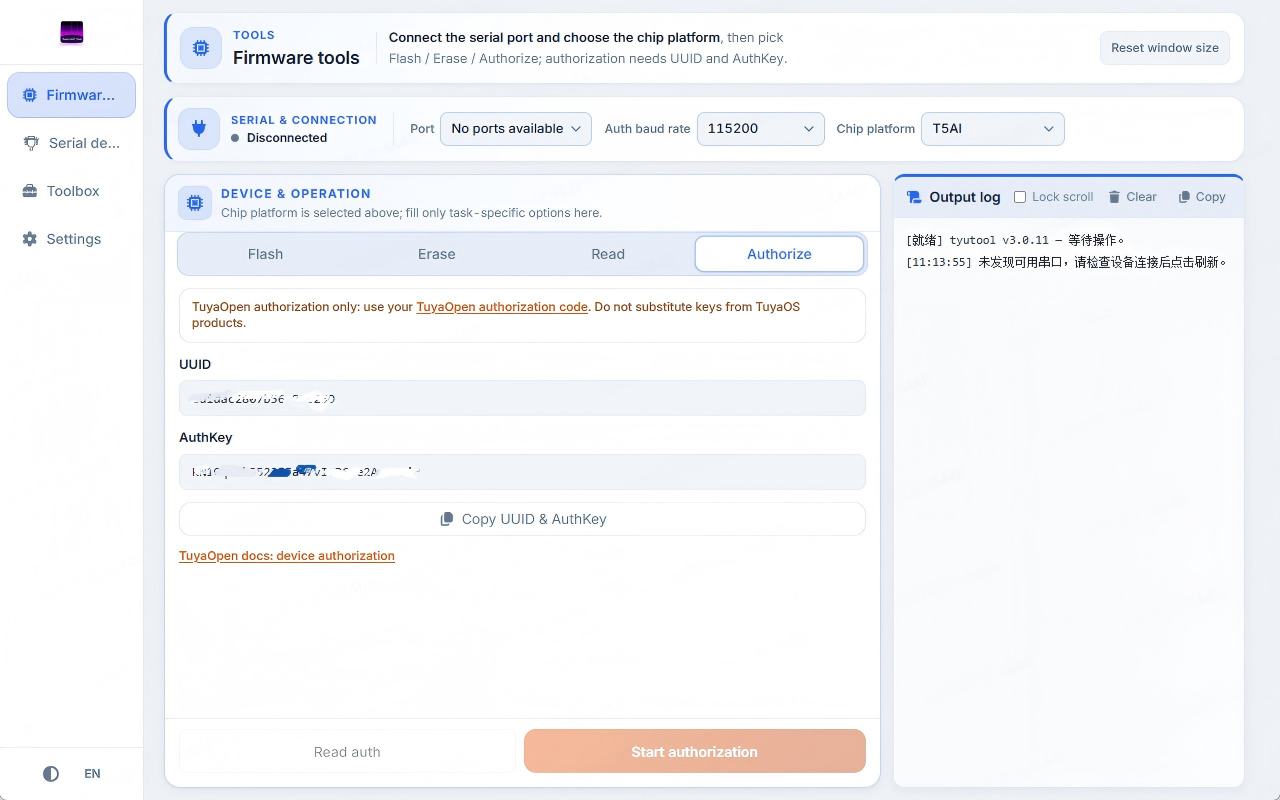
- Click the
Authorizetab. - Select the authorization serial port.
- Select the authorization baud rate.
- Enter the
UUIDandAuthKey. - Click
Start Authorization.
The authorization UART and the flashing UART are the same. Keep the UART default configuration (baud rate: 115200, data bits: 8, stop bits: 1, parity: none).
The TuyaOpen UUID and AuthKey can be obtained from the Tuya IoT Platform or purchased from Tuya's official Taobao store.
Frequently Asked Questions
Flashing always fails at the write stage
For the CH34x series, install or update the driver:
- Windows: https://www.wch.cn/downloads/ch343ser_exe.html
- Mac: https://www.wch.cn/downloads/CH34XSER_MAC_ZIP.html
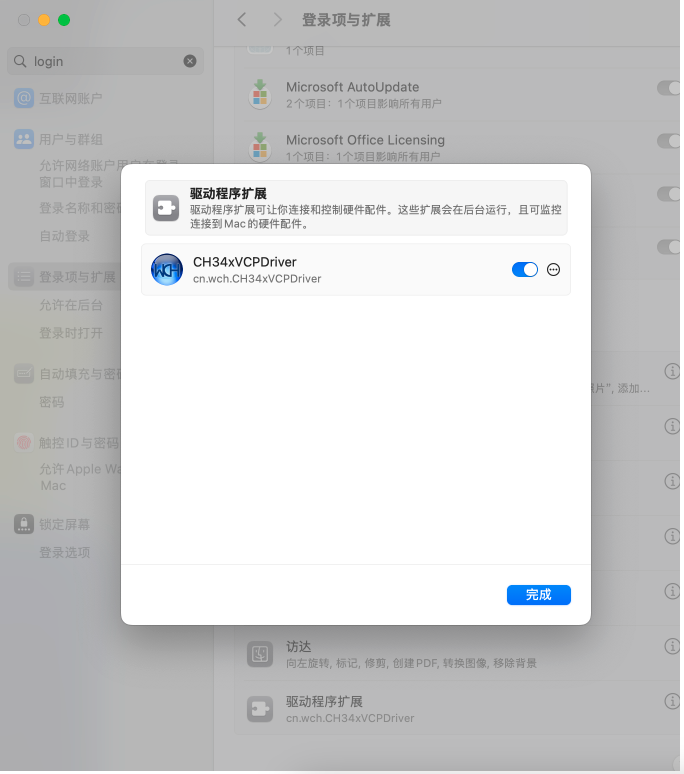
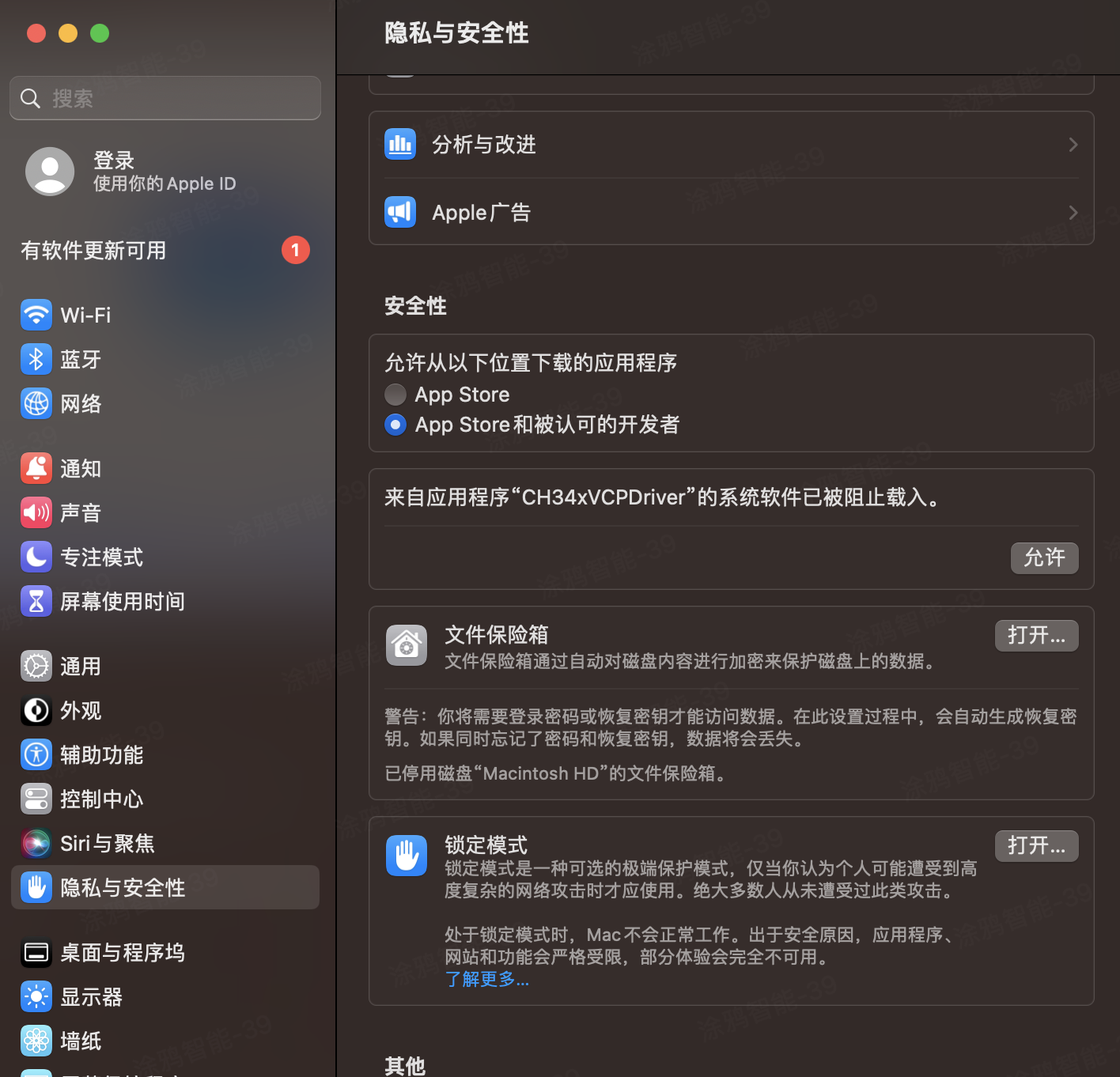
On Mac, after installing the driver, allow it to load in Security Settings.
When the driver installs successfully, the CH34x device is recognized with a name starting with cu.wchusb. If it is not, the driver did not install correctly.
- MacOS 13
- MacOS 15
On MacOS 13, operate in "Privacy & Security".
On MacOS 15, search for "login" in "Settings" to proceed.