Batch Auth: Operator Guide
Written for operators using tyutool for batch flashing and authorization — a "just do it" order, no technical background needed.
Firmware developers should read the Developer Guide.
The workflow, in order: ① Pre-flight checklist → ② Configuration → ③ Wiring & start → ④ Read results · troubleshooting · safety rules.
What this tool does
Plug several devices into several serial ports, click "Start all", and flash + authorize them simultaneously, with authorization codes read automatically from an Excel sheet.
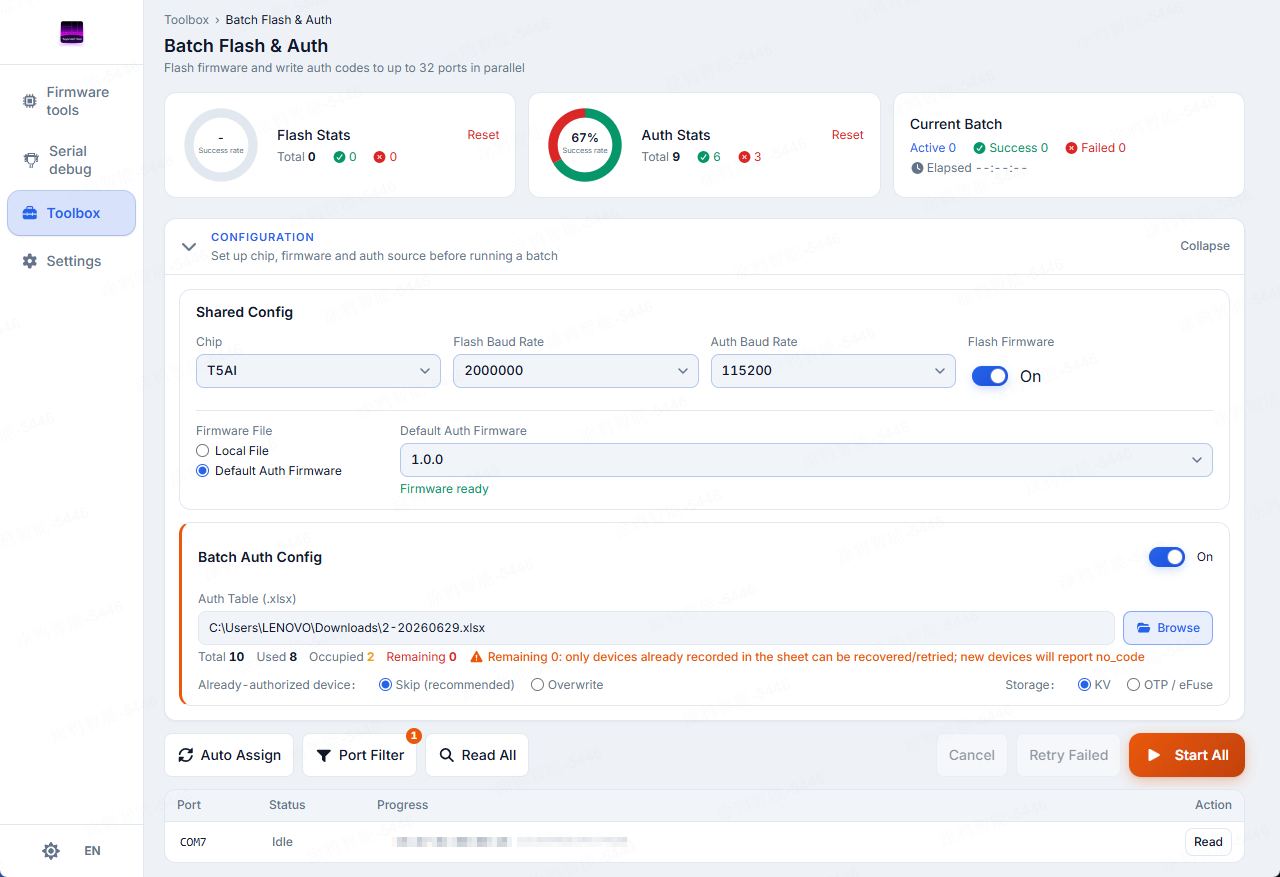
Batch page — completion banner / dashboard (flash totals · auth totals · this batch) / config panel / toolbar (auto-assign · port filter · read-all · start-all) / port list.
Pre-flight checklist
| Item | How to know it is ready |
|---|---|
| Desktop tyutool | Installed and launches |
| Authorization-code Excel | Has at least UUID + AuthKey columns; purchased from tuyaopen.ai/pricing |
| Devices + serial cables | Wired and devices can enter download mode |
| Serial drivers | CH340/CP2102/FT232 installed |
| Firmware file | The .bin for this batch |
Installer packages (version pinned for reference — always check GitHub Releases for the latest):
| Platform | File |
|---|---|
| Windows | ..._windows_x86_64_nsis_x.x.x.exe |
| macOS (Universal) | ..._macos_universal_dmg_x.x.x.dmg |
| Linux | ..._linux_x86_64_appimage_x.x.x.AppImage (run chmod +x first) |
These devices have two serial ports — be sure to connect the flashing/authorization port, not the log port.
Keep the Excel safe.
Configuration handoff
| Config item | Developer fills | Operator verifies |
|---|---|---|
| Chip model | e.g. esp32 / t5ai | Matches the device |
| Operation mode | auth-only vs flash-then-auth (Path A/B) | "Flash firmware" switch matches |
| Firmware file & version | filename + version | batch-summary.json records SHA256 |
| Flash baud rate | e.g. 921600 | Set correctly |
| Auth baud rate | e.g. 115200 | Set correctly |
| Storage mode | KV / OTP | OTP → single-device validation first |
| Conflict policy | skip / overwrite | OTP can only skip |
| Authorization sheet | remaining ≥ new devices in this batch | Recover/retry of registered devices doesn't consume new codes |
| Wiring | notes | Confirm RTS wired to reset pin |
| MAC uniqueness | each MAC globally unique | tyutool does not check MAC conflicts — a duplicate MAC makes devices share an auth code |
| Single-device smoke test | passed | Done before scaling |
| Special notes | — | Read |
If something doesn't line up, stop and confirm with the developer — don't change the configuration yourself.
Workflow
Go to Toolbox → Batch flash & auth.
The first time you enter, a disclaimer dialog appears (irreversible operation). You can tick "don't show again"; to re-show it see Settings.
Phase 1 — Configuration
- Pick the chip (ESP32 / T5AI; for auth-only choose
other). - Flash baud rate.
- Auth baud rate.
- Whether to flash firmware (flash-then-auth).
- Firmware file (local / default auth-firmware).
- Pick the firmware location or choose a version.
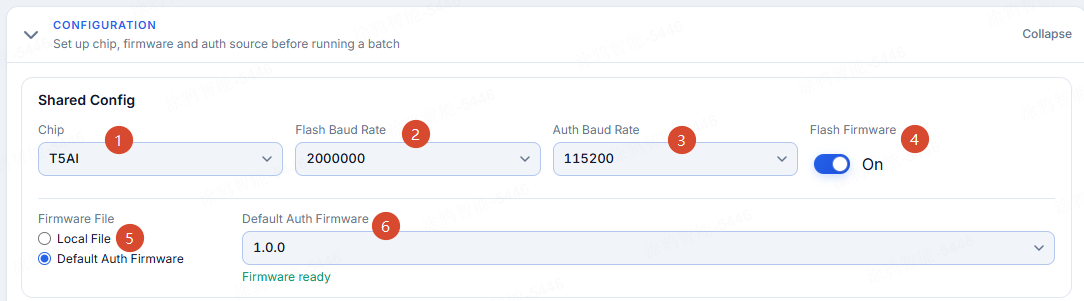
Configuration area — shared config panel.
- Pick the authorization sheet (
.xlsx). - View statistics: total / used / in-use / remaining (assigning codes to new devices needs remaining > 0; recovering/retrying already-registered devices can start even with remaining 0 — they find their original code by MAC).
- Devices already carrying authorization: skip (recommended) / overwrite.

Batch auth configuration — sheet statistics.
(T5AI only) Pick the storage mode: KV is rewritable; OTP writes once and is irreversible (see Safety).
Phase 2 — Wiring & start
First run one device all the way through → small-batch 2–4 devices → then the whole batch.
Once wired, two steps:
- Click Auto-assign (scans and adds slots, one row per port showing "idle").
- Click Start all (if more than 8 idle ports, a confirmation prompt appears first).
Re-read each config line against the handoff sheet. If OTP: single-device validation done?

Toolbar and port list — slots per port.
② Port filter · ③ Read all (read-only, no write) · ④ Cancel · ⑤ Retry failed · ⑦ Read single port.
Phase 3 — Wait and verify
- Watch the dashboard until it completes (the banner shows: all success / all failed / partial success / all skipped).
- Verify row by row (on failure, look at retry).
- Once the whole order is done, click "Archive" (you don't need to archive mid-batch rounds).
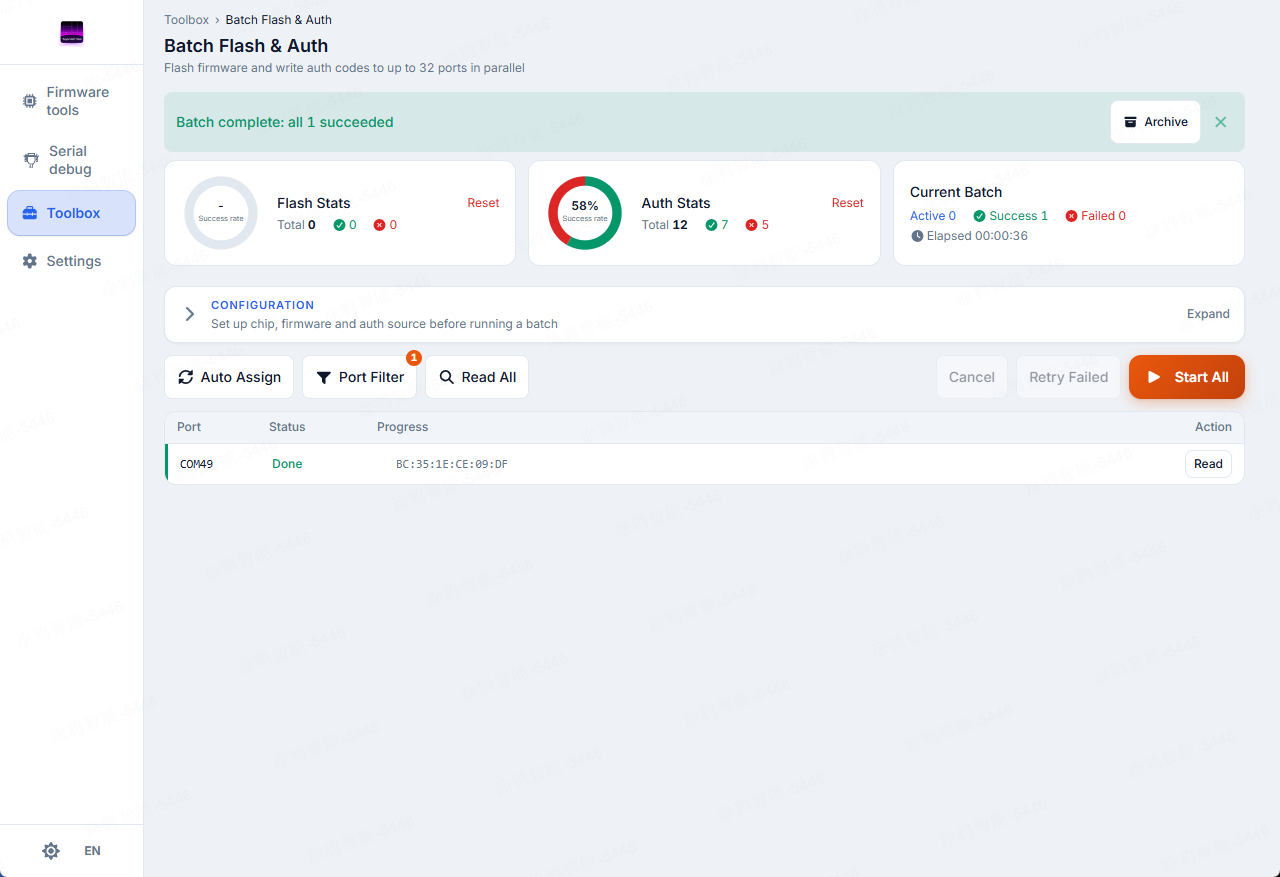
Dashboard and completion banner (archive button on the right).
Reading results
| Status | Meaning | What to do |
|---|---|---|
done | Complete, good unit | — |
failed | Failed | Retry |
skipped | Already authorized, skipped per policy | — |
no_code | New device but remaining = 0 | Top up the sheet and rerun |
| other | In progress | Wait |
Archiving
One "Start all" = one round; one authorization sheet = one order (often many rounds). Archiving is per order.
One-click archive: pick a directory and it creates a timestamped folder batch-archive_20260717-143205_esp32/ containing: authorization-sheet copy / firmware (with SHA256) / logs.zip / batch-summary.json / batch-slots.csv. The summary's lastRun and the CSV are only a snapshot of the last round.
Archive contents:
| File | What it is |
|---|---|
| Authorization-sheet Excel copy | The sheet used |
| Firmware file | The flashed .bin |
| logs.zip | Compressed logs |
| batch-summary.json | Run summary |
| batch-slots.csv | Per-slot snapshot of the last round |
| Completion banner screenshot | Optional record |
The archive contains UUID + AuthKey — prevent leaks. For troubleshooting, share only the logs and error info; do not send the authorization sheet out.
Troubleshooting
| Symptom | What to do |
|---|---|
| App won't open / blank screen | See FAQ · Linux blank window |
| Port doesn't appear | Swap cable/port, install drivers, close other apps — see FAQ · ports |
| All failed | Run a single device through, drop to 115200, check power supply |
| Excel "file in use" | Close Excel/WPS and reselect |
| Excel sheet invalid | Check the UUID + AuthKey columns and their lengths |
| Need detailed logs | Save per Save the scene, see FAQ · logs |
Save the scene first
While the scene is still live, click "Archive" to save everything; then manually add three things: a UI screenshot (mask the AuthKey, UUID can stay) / the problem device itself (label it and set it aside) / a one-line symptom description.
Don't wait and don't leak: archive the same day; when sharing out, give only the logs and error info.
Safety rules
This is the only feature that triggers irreversible hardware operations.
OTP (T5AI only) burns authorization into the chip once and can never be undone. A wrong configuration ruins the whole batch — always validate by running one device all the way through before going to scale.
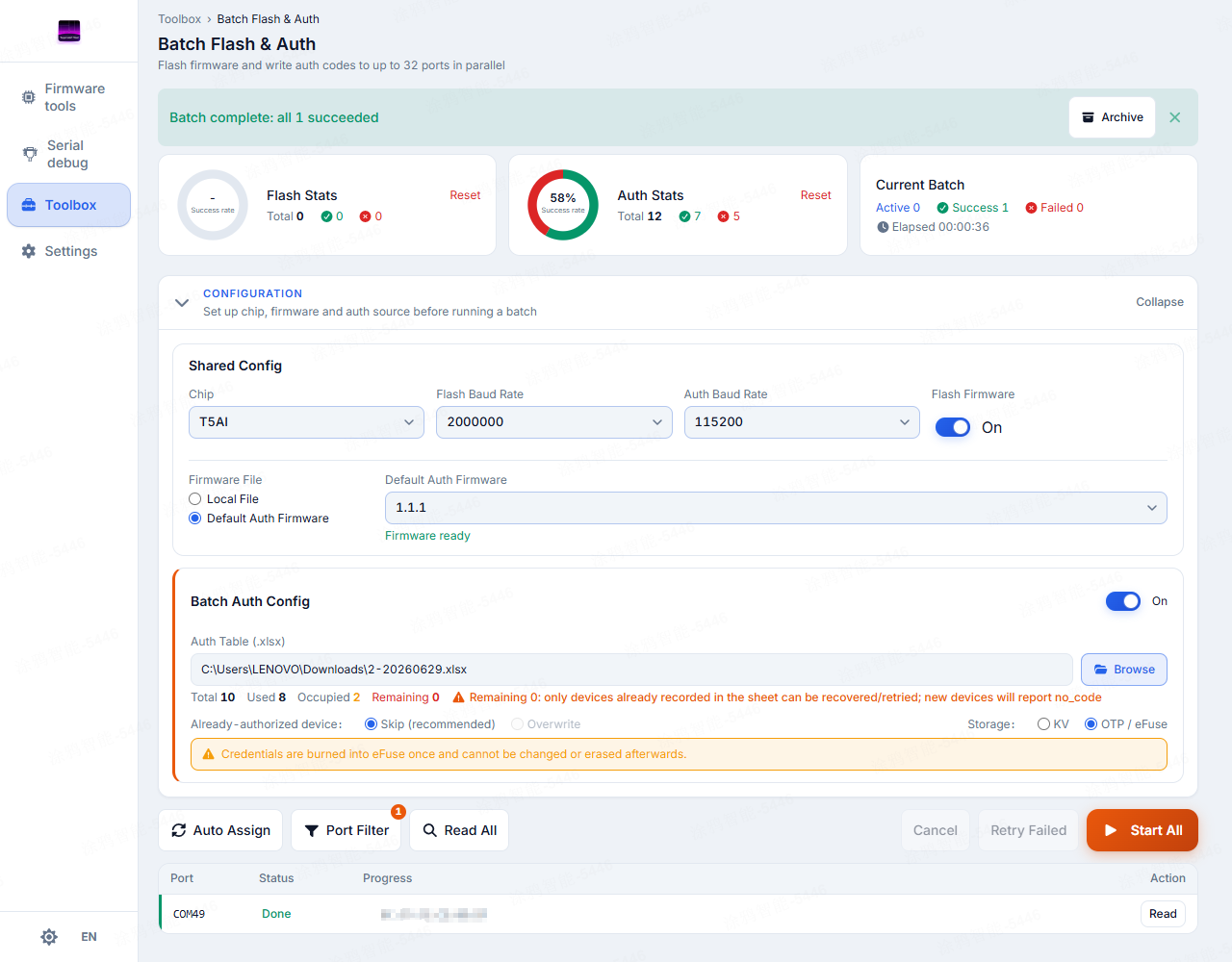
When OTP is selected, the UI warns the write cannot be undone.
Devices carrying the "cancelled-after-write" danger badge may already have had authorization written and their state is uncertain — they are neither good units nor safe to rerun directly. Set them aside and verify individually.