L511 Series Overview
L511 is a cellular module family that connects to Tuya cloud over cellular networks. Firmware is built on Linux and flashed and logged with Windows tools.
Select a model and configure the project
When creating a project in the IDE, select the L511 model that matches your module. For an SDK example, run tos.py config choice in the application directory, select the matching model configuration, and then run tos.py build. See the project compilation guide.
| Model | SDK target | Configuration option |
|---|---|---|
| L511G-Y7PM | L511G_Y7PM | CONFIG_L511_MODEL_L511G_Y7PM=y |
| L511C-Y7PM | L511C_Y7PM | CONFIG_L511_MODEL_L511C_Y7PM=y |
| L511C-Y6 (Y6E) | L511C_Y6E | CONFIG_L511_MODEL_L511C_Y6E=y |
All three models enable CONFIG_BOARD_CHOICE_L511=y. Check source/embedded/app_default.config for IDE projects and app_default.config in the application directory for SDK examples. Configuration, firmware, and download files must match the same model.
Build and prepare firmware
For the following L511G_Y7PM build output example, copy these files to Windows. Keep the paths free of non-ASCII characters. A USB data cable, development board, and Windows serial driver are also required.
- Download configuration:
source/embedded/dist/<project>/L511G_Y7PM_download/config_custom_usb.ini - Firmware package:
source/embedded/dist/<project>/<project>_QIO_<version>.binpkg - FlashTool V4.1.22
Flash firmware with FlashTool
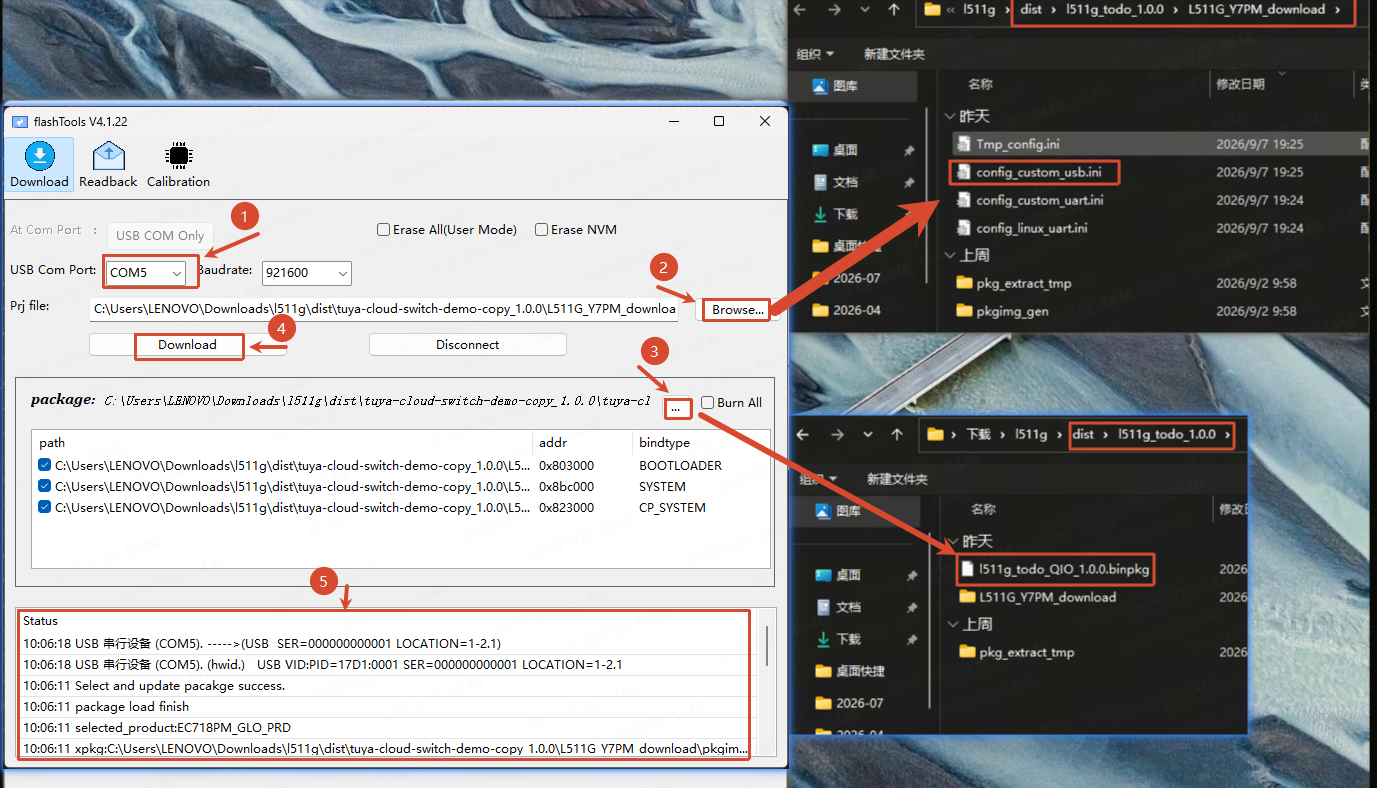
- Extract and launch FlashTool.
- Connect the target board over USB and confirm that Windows detects its serial port.
- Put the board into download mode. For an L511G board, enter download mode by pressing the BOOT pull-up button, pressing and releasing RST, then releasing BOOT.
- In FlashTool, select the flashing port that appears after the board enters download mode.
- Load the download configuration matching the target board/module, then select the firmware package produced for that target.
- Click Download and watch the tool's status area for the result.
- After a successful flash, restart the device. If flashing fails, re-enter download mode and try again.
View logs with EPAT
- EPAT V1.3.261.570
- Use the
comdb.txtgenerated with the firmware, located insource/embedded/dist/<project>/L511G_Y7PM_download/.
-
Extract and launch EPAT. Connect the board and confirm that it has left download mode and restarted.
-
Open Database State, click Update, and use the file picker to locate the
comdb.txtmatching the current firmware.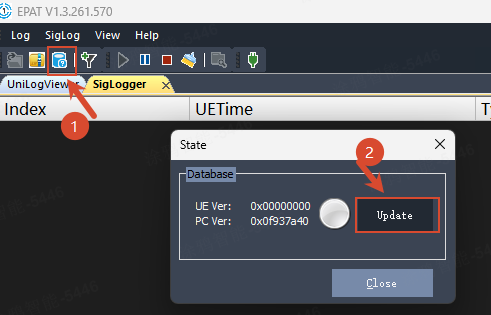
EPAT Database State window -
Click Update again to load the database, then close the database window.
-
Select the device's log serial port and open the log view. If multiple ports are present, check them one at a time. Only one port may appear while the device is in download mode.
-
After each firmware rebuild, load the
comdb.txtcorresponding to that firmware so the log decoder matches the running image.
Cellular connectivity and QR-code binding
Cellular devices connect to the internet through a SIM card. Scanning a QR code binds the device to the app account; Wi-Fi name and password are not required. See Device Network Configuration.
-
In
tuya_config.h, configure the correct product ID (PID) and a unique UUID and Authkey for the device, then build and flash the firmware. See Get a Developer License. -
Power off the device, insert a SIM that supports data service, connect the cellular antenna, and power it on to connect to the network.
-
Use the QR code printed by the example, if available. Otherwise, generate a QR code from this URL:
https://smartapp.tuya.com/s/p?p=<pid>&uuid=<uuid>&v=2.0Replace
<pid>with the product ID and<uuid>with the device authorization UUID. Do not put the Authkey in the QR code. -
In the Smart Life app, tap + > Scan and scan the QR code to bind the device. The phone and device both need network access, and the device must be ready for binding.
Use EPAT logs to distinguish SIM or network registration problems from cloud binding failures. For SIM-specific issues, check the SIM status, signal, and CONFIG_CELLULAR_APN, which some IoT or private-network SIMs require.