Install TuyaOpen IDE
Install the TuyaOpen IDE extension in VS Code or Cursor — by letting an AI coding agent do it, or from the manual .vsix — then verify it is enabled.
Before you install
TuyaOpen IDE is an extension for VS Code or Cursor. Install one of these host editors first — the same extension package works in both.
| Host editor | Download | Note |
|---|---|---|
| VS Code | https://code.visualstudio.com | The widest general ecosystem. |
| Cursor | https://cursor.com | Ships with stronger built-in AI. |
Both the VS Code Marketplace and Open VSX search are temporarily unavailable. Install via an AI coding agent or the manual .vsix below — do not expect to find it by searching inside the editor.
Method 1: Let an AI agent install it (fastest)
Paste the prompt below into Claude Code, Cursor, Codex, or any coding agent that can run shell commands. It downloads the .vsix and installs the extension for you.
Install the TuyaOpen IDE extension. Download the latest .vsix from
https://open-vsx.org/api/TuyaOpen/TuyaOpenIDE/0.1.1/file/TuyaOpen.TuyaOpenIDE-0.1.1.vsix
then install it with `code --install-extension <path.vsix>` (VS Code) or
`cursor --install-extension <path.vsix>` (Cursor), and reload the editor
window so the extension takes effect.
Steps:
-
Open Cursor (used here as the demo), and paste the prompt into the agent.
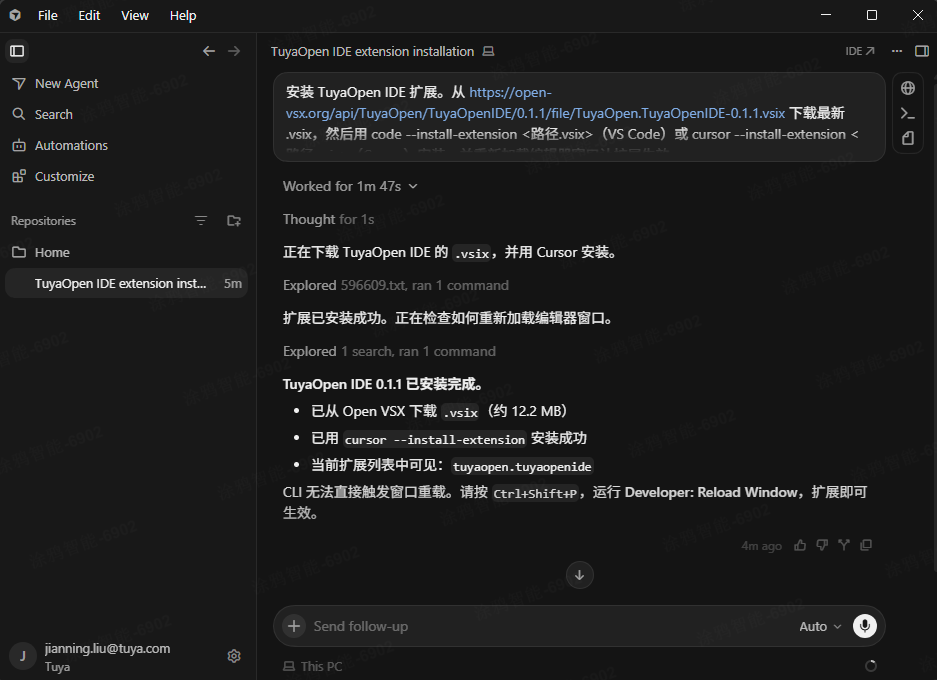
-
When it finishes, open Cursor. In the Extensions view you can see that TuyaOpen IDE is installed and enabled.
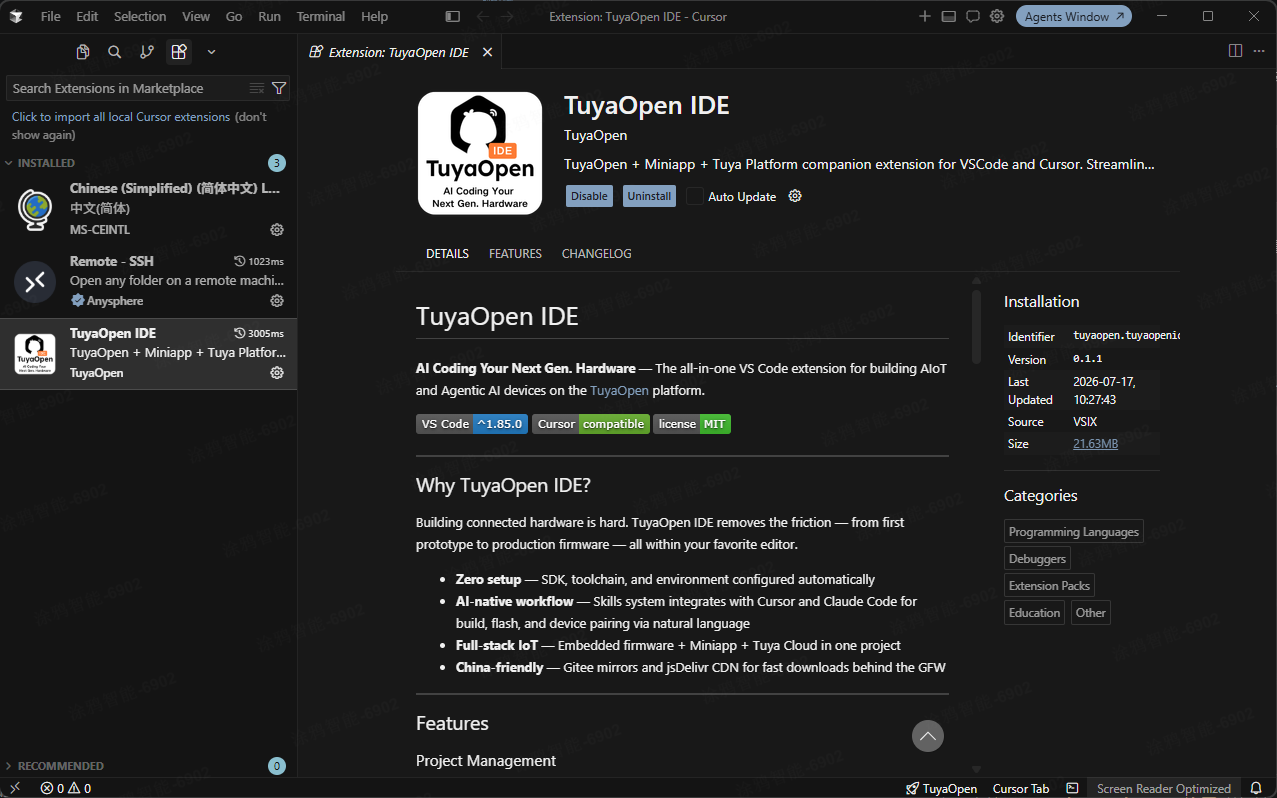
-
Click TuyaOpen on the right side of the bottom status bar to start using it.
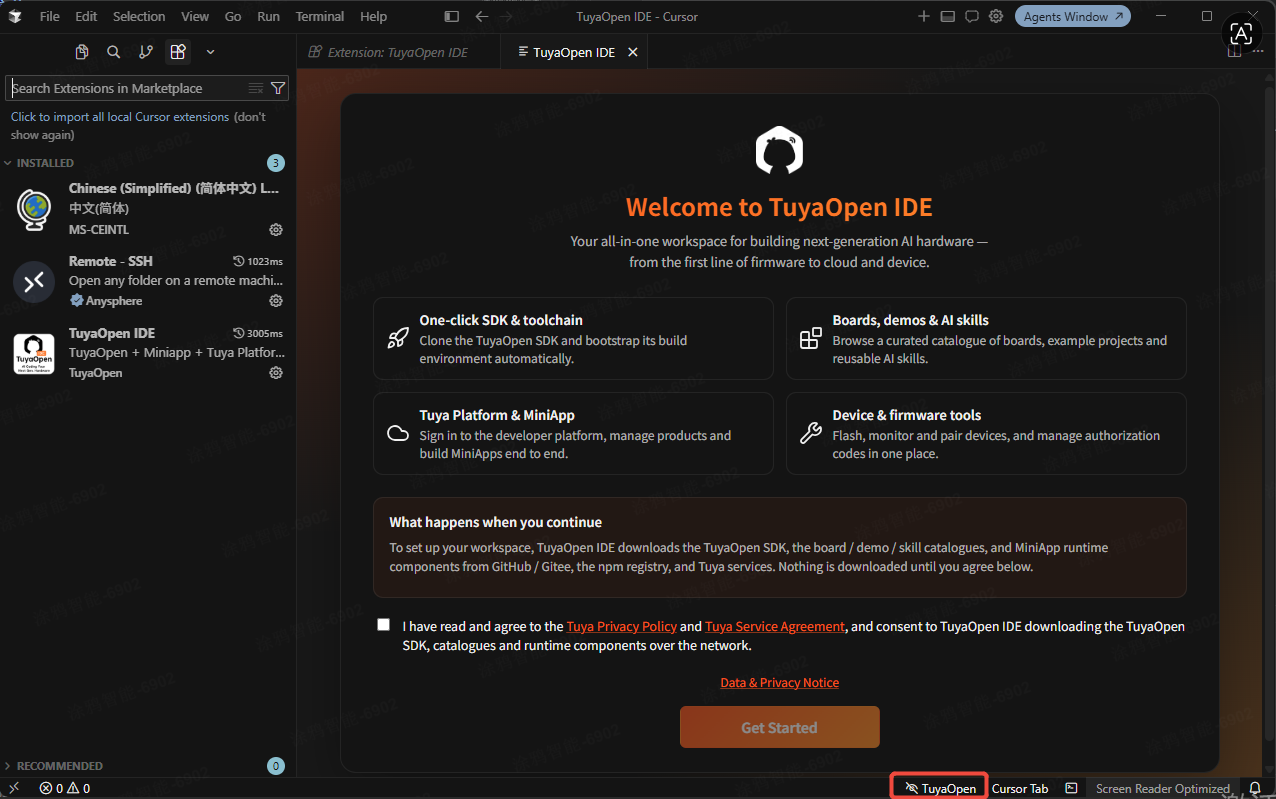
The download link in the prompt points to the latest version of the .vsix. The agent runs the whole download → install → reload flow with no manual steps.
Method 2: Install the .vsix manually
The same package works in both VS Code and Cursor.
Download: TuyaOpen.TuyaOpenIDE-0.1.1.vsix (v0.1.1 · Windows · macOS · Linux · universal).
The steps below use VS Code as the demo.
-
Download the
.vsixfrom the link above. -
Open VS Code and go to the Extensions view —
Ctrl+Shift+X(macOS:⌘+Shift+X). -
Open the
⋯menu at the top right of the Extensions panel. -
Choose Install from VSIX… and select the file you just downloaded.
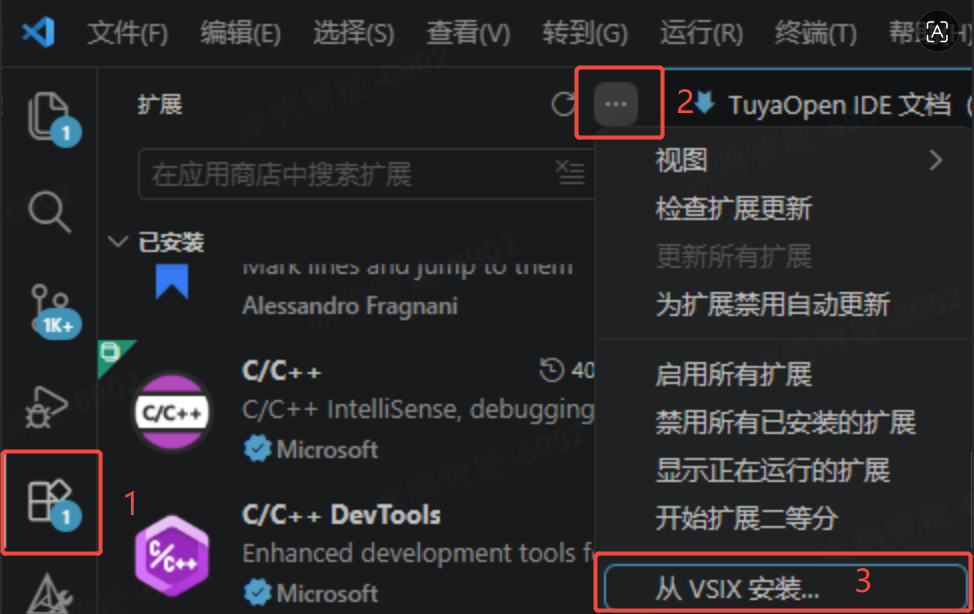
-
Reload the editor when prompted, then start using it.
Verify the installation
After reloading the editor, confirm two things:
-
TuyaOpen commands appear in the Command Palette — press
Ctrl+Shift+P(macOS:⌘+Shift+P), typeTuyaOpen, and you should see a group of TuyaOpen commands.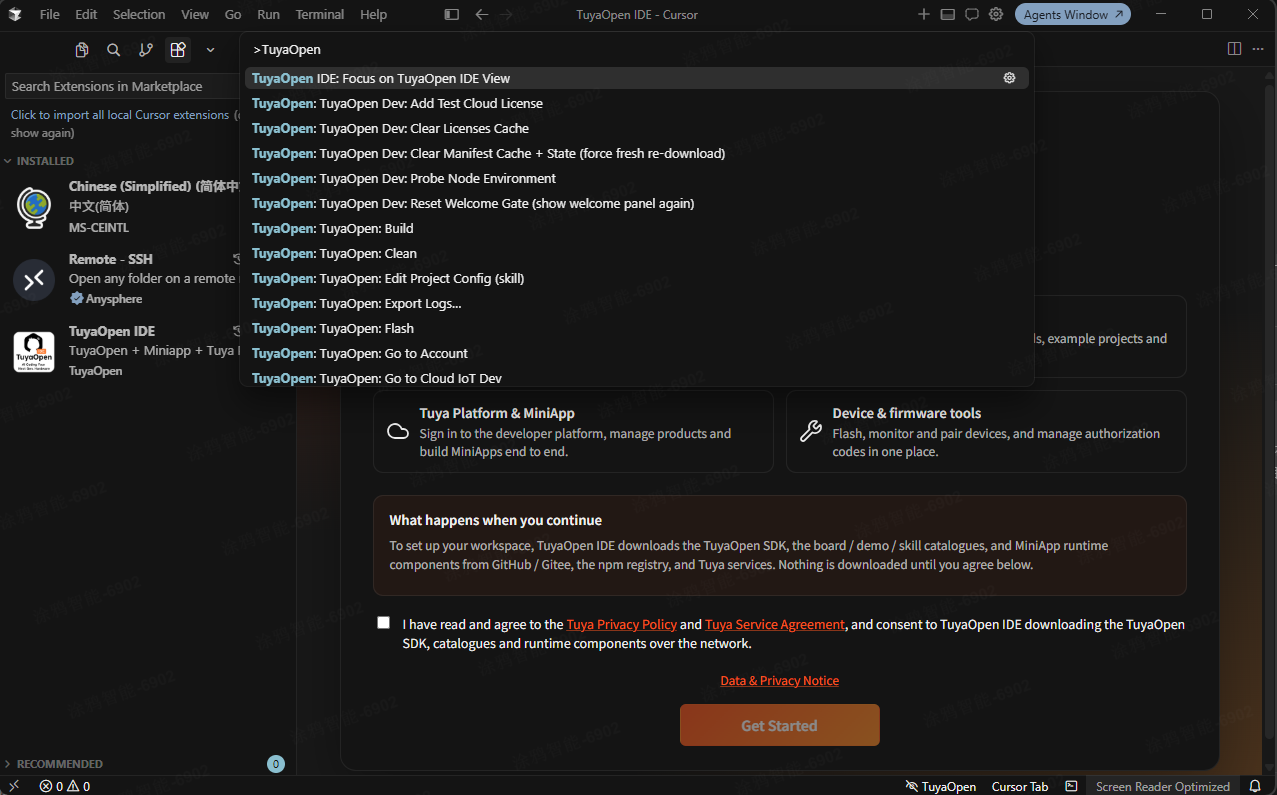
-
The extension is enabled — in the Extensions view (
Ctrl+Shift+X), find "TuyaOpen IDE" and confirm its status is Enabled.
If installation fails
The three most common cases:
- The
.vsixwill not install — check that your VS Code or Cursor is recent enough. The extension requires a VS Code engine of^1.85.0or higher. - The extension installs but does not appear — reload the editor, or restart it completely.
- No TuyaOpen commands in the Command Palette — confirm the extension is Enabled (not disabled) in the Extensions view.
Next step
You are ready to build. Start with Practice 1: Hello World — run an official example with zero code and learn the IDE basics.